Quick Hits
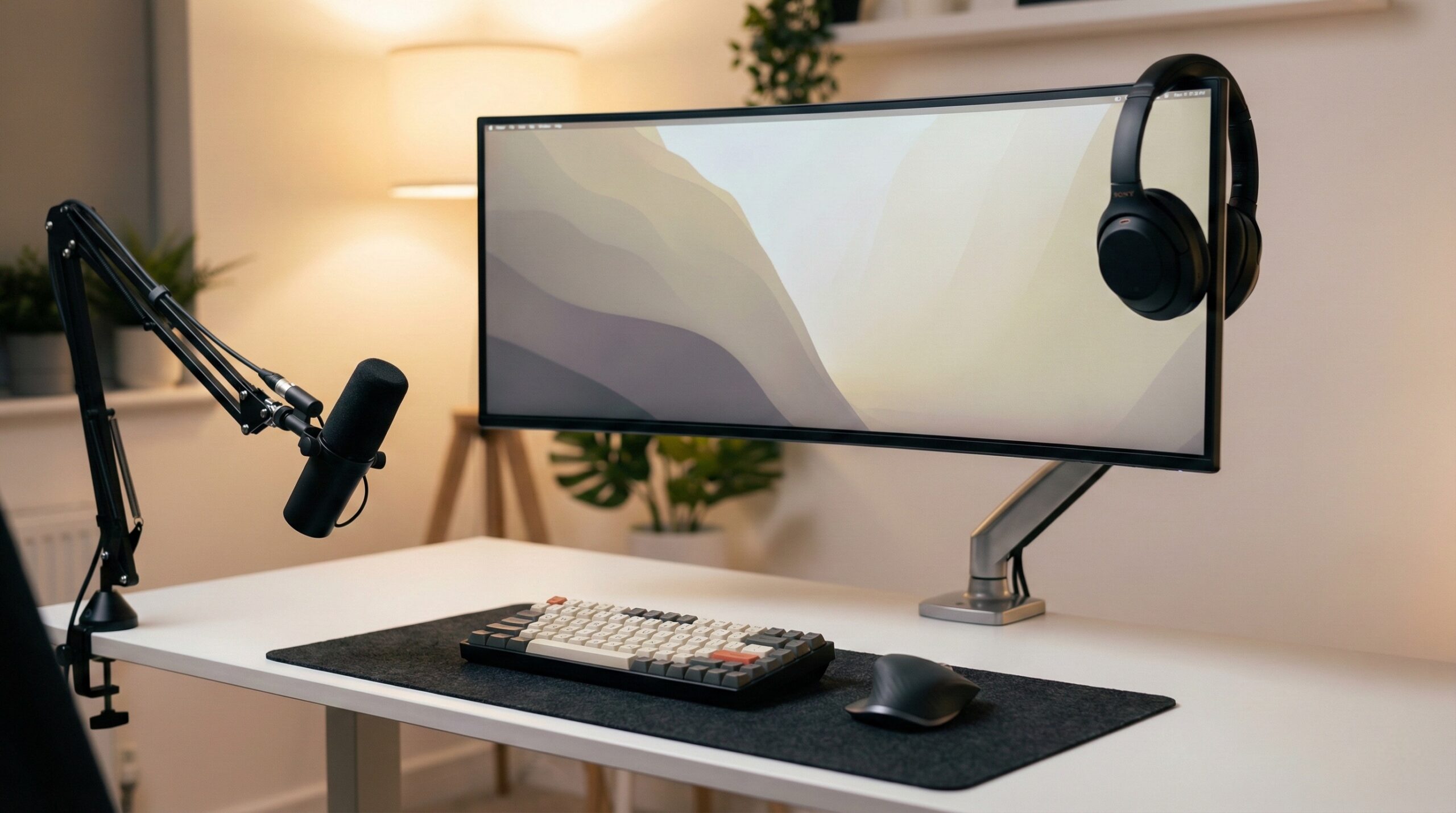
Choosing between Dell and LG for a multi-monitor setup often comes down to a choice between corporate reliability and raw panel specs. Dell’s UltraSharp line is the gold standard for workspace integration, offering superior daisy-chaining stability and some of the best anti-reflective coatings in the business. LG, conversely, often provides higher resolutions (4K) and better text clarity for MacBook users at a lower price point. While LG dominates in panel innovation, Dell wins on the “IT ecosystem” front, particularly if you use Dell laptops and docking stations. However, be prepared for the “Dell Tax” on pricing, and keep in mind that identical LG monitors can sometimes confuse your operating system settings.
Introduction: The Dual-Monitor Dilemma for Power Users
After spending hundreds of hours staring at spreadsheets, code editors, and CAD models across nearly every configuration imaginable, I’ve realized that your choice of monitor brand dictates your entire desk’s ergonomics. For IT professionals and remote power users, the “Dell vs LG” debate isn’t just about which screen looks prettier on a spec sheet. It’s about how those screens behave when you wake your laptop from sleep, how they handle power delivery through a single cable, and whether your OS will remember which window goes where every morning.
Your workspace setup might benefit more from Dell’s rigorous testing with office docks, or you might find that LG’s superior pixel density is the only thing that saves you from eye strain during a 10-hour shift. In 2026, the gap between consumer and professional displays has narrowed, but the software quirks and hardware reliability issues remain distinct. I’ve seen enough “undersized power” errors and flickering daisy-chains to know that picking the wrong brand for your specific hardware can lead to a week of troubleshooting you don’t have time for.
If you’re looking to overhaul your entire environment, our guide to desk and workspace setups provides a broader look at how these monitors fit into a healthy workflow.
| Product Name | Best For | Price Range | Pros/Cons | Visit |
|---|---|---|---|---|
| Dell U4025QW | High-End Productivity | $1,700 – $1,950 | 5K2K Resolution; 120Hz / Very Expensive | |
| LG 40WP95C-W | Creative Professionals | $1,200 – $1,500 | Great PPI; TB4 Hub / Low Refresh Rate | |
| Dell U2722D | Standard Office Use | $450 – $550 | Reliable Daisy Chaining / 1440p Only | |
| LG 27UL650-W | Budget 4K Work | $300 – $380 | Crisp Text; Value / Flimsy Stand |
Ecosystem Synergy: Dell Docks vs. LG Panel Dominance
The Dell Advantage: Built for the Workspace
Dell’s UltraSharp series, like the U2722D, isn’t just a monitor; it’s a node in a corporate network. If you’ve ever dealt with the frustration of a laptop not recognizing a second display, you know why IT departments favor Dell. These monitors are designed to work flawlessly with Dell WD19TBS docks. The synergy between the hardware allows for features like MAC address pass-through and remote firmware updates—things you might not care about until your home office setup starts acting like a temperamental teenager. The anti-reflective coating on the UltraSharp line is widely regarded as industry-leading, diffusing harsh office lighting without making the screen look “grainy.”
The LG Edge: High-Spec Value
LG is the primary manufacturer of many of the panels Dell actually uses, but when they sell under their own brand, they often pack in more features for fewer dollars. The LG 27UL650-W is a prime example. While a comparable Dell UltraSharp might cost $100 more, LG offers full 4K resolution at a price point where Dell is still pushing 1440p. For MacBook users especially, this extra pixel density (PPI) is vital. macOS scaling looks significantly better on 4K panels than on 1440p ones, where text can sometimes appear blurry or “jagged” to those used to Retina displays.
What Real Users Are Saying (Reddit Insights)
General Sentiment: Productivity vs. Aesthetics
The general consensus among the Reddit community is that Dell is for the “set it and forget it” crowd, while LG appeals to those who want the best possible image for the money. Many users on r/ultrawidemasterrace point out that Dell’s customer service and “Advanced Exchange” warranty—where they ship you a replacement before you send yours back—is a massive peace of mind factor for professionals who can’t afford a day of downtime.
Top Complaints: The Reality Check
Real-world usage reveals several thorns in the side of these brands. LG users frequently report an “identity crisis” in Windows or macOS when using two identical LG monitors.
“Windows randomly forgets which monitor is the ‘left’ one and which is ‘right’ because they report the exact same hardware ID. It resets my window management and audio routing every other time I reboot.” — r/AskProgramming
Furthermore, while Dell is reliable, users complain about the “Dell Tax.” You are often paying for the logo and the stand rather than superior panel tech. Some users have noted that LG’s long-term durability on input circuit boards can be spotty, with HDMI ports becoming loose or failing after a couple of years of heavy cable swapping.
Budget Tips & Value Picks
The community often suggests that if you are buying with your own money, LG offers the best “bang for buck” for high-resolution tasks. However, if your employer is footing the bill, the Dell UltraSharp series is the unanimous recommendation for its robust build and superior connectivity.
“I moved from dual 27-inch 4K monitors to the 1600p Dell resolution and I’m not disappointed. The vertical space and build quality make it worth the premium.” — r/ultrawidemasterrace
Detailed Product Reviews
Dell U4025QW
This is the current titan of productivity. Offering a “5K2K” resolution, it essentially gives you the screen real estate of two 27-inch 1440p monitors but without the annoying bezel in the middle.
What Works
- 120Hz Refresh Rate: Unlike many large-format office monitors that cap at 60Hz, the U4025QW makes cursor movement and window dragging feel buttery smooth.
- Thunderbolt 4 Hub: It provides up to 140W of power delivery, which is enough to charge even the beefiest Dell Precision or MacBook Pro 16.
What Doesn’t
- Price Tag: It is significantly more expensive than LG’s 40-inch equivalents, often by $500 or more.
- Weight: This monitor is incredibly heavy. You will need a high-end monitor arm if you plan to move it off its stock stand.
Worth It? Best for high-level executives or 3D designers who need massive workspace and single-cable simplicity. Skip if you are on a strict budget.
LG 40WP95C-W
The direct competitor to the Dell 40-inch, this monitor offers the same 5120 x 2160 resolution but at a more palatable price point for the average professional.
What Works
- Color Accuracy: LG’s Nano IPS technology provides vibrant colors that are fantastic for video editing or photo work.
- Mac Compatibility: It plays very well with Thunderbolt-equipped Macs, offering crisp text rendering that matches the Apple ecosystem well.
What Doesn’t
- 60Hz Limit: Compared to Dell’s newer 120Hz model, the LG can feel a bit sluggish during fast transitions.
- Stand Quality: The included stand is functional but feels a bit wobbly compared to Dell’s industrial-grade bases.
Worth It? Best for creative professionals and Mac users who want a 5K2K ultrawide experience without the Dell premium. Skip if you prioritize high refresh rates.
Dell U2722D
This is the workhorse of the modern office. It’s a 27-inch 1440p monitor that focuses on reliability and connectivity rather than flashy specs.
What Works
- Daisy Chaining (MST): You can run a DisplayPort cable from your PC to the first monitor, and then another from the first to the second, minimizing cable clutter.
- Anti-Glare Coating: One of the best in the industry for diffusing light from windows or overhead lamps.
What Doesn’t
- Standard PPI: At 108 PPI, text is readable but doesn’t have the “printed page” sharpness of a 4K display.
- No USB-C Charging: This specific model requires a separate power source for your laptop unless you opt for the ‘DE’ version.
Worth It? Best for general office work, coding, and multi-monitor arrays where stability is the #1 priority. Skip if you want 4K sharpness.
LG 27UL650-W
If you want 4K on a budget, this is often the go-to recommendation. It provides high pixel density that makes reading small text significantly easier on the eyes.
What Works
- Price-to-Performance: It’s hard to find a better 4K IPS panel for the price. The colors are punchy and the brightness is impressive.
- HDR 400: While basic, it adds a bit of depth to media consumption during your lunch break.
What Doesn’t
- OS Recognition Issues: As mentioned by many Reddit users, using two of these can lead to “monitor swapping” issues in your display settings.
- Physical Adjustability: The stand lacks the smooth, effortless glide found on Dell’s UltraSharp series.
Worth It? Best for budget-conscious users who demand 4K clarity for reading or light design work. Skip if you need a robust, professional-grade stand.
Technical Deep-Dive: Resolution, Scaling, and PPI
Why 5K2K Matters for Productivity
In fields like CAD, 3D rendering, and video editing, vertical resolution is king. While a standard 4K monitor gives you 2160 pixels of height, a standard 1440p monitor only gives you… well, 1440. The Dell U4025QW and LG 40-inch variants use a “5K2K” resolution (5120 x 2160). This allows you to have a massive timeline or several rows of code visible while still having plenty of horizontal space for your toolbars. In my testing, 5K2K is the sweet spot because it avoids the “letterbox” feel of standard ultrawides while providing the screen area of a dual-monitor setup without the physical gap.
The MacBook Scaling Problem
If you use a MacBook, you should prioritize LG’s 4K or 5K offerings. Apple’s “Retina” scaling works best when the display has a PPI (pixels per inch) of around 110 or 220. Most 27-inch 4K monitors sit around 163 PPI, which requires macOS to use a “scaled” resolution. This uses more GPU resources and can occasionally lead to tiny UI elements. However, 1440p on a 27-inch (Dell U2722D) often looks blurry on macOS compared to Windows.
If you’re struggling with positioning your monitors for the best view, checking out the best notebook stands for dual monitor setups can help you align your laptop screen with your external panels.
Connectivity and Hardware: Hubs, Docks, and Adapters
Power Delivery and the ‘Skim’ Problem
A common issue IT professionals face is the “undersized power source” warning, especially on Dell XPS laptops like the XPS 13 9310. This usually happens when using third-party USB-C hubs (like some Anker models) that “skim” wattage to power their own internal ports. For example, if you plug a 100W charger into a hub, the hub might only pass 85W to the laptop. This is why integrated Thunderbolt monitors from Dell and LG are so popular—they manage power delivery much more efficiently than a daisy-chain of dongles.
The Thunderbolt Standard
To run dual 1440p monitors at 165Hz or dual 4K monitors at 60Hz, you need serious bandwidth. Standard USB-C often falls short. I recommend using a dedicated Thunderbolt 3 or 4 adapter, such as the Sabrent TH-3DP2, to bypass the bandwidth limitations of traditional DisplayPort MST. This ensures that both monitors receive a full-resolution signal without the flickering often seen in cheaper multi-purpose hubs.
For more on expanding your port selection, browse our tech peripherals and accessories category.
Best Monitors by Work Style
Best for 3D Modeling and Rendering
The Dell U4025QW is the clear winner here. The 5K2K resolution combined with the 120Hz refresh rate allows for precise cursor movement and enough screen real estate to keep your viewport, timeline, and asset library all visible at once.
Best for Programming and Coding
A dual-monitor setup using two Dell U2722D units is the classic “pro coder” choice. The 1440p resolution is easy on the eyes for long periods, and the daisy-chaining capability keeps the desk clean. If you use a high-end PC with an RTX 4080 Super, you won’t have any issues driving these through a single cable.
Best for Content Creators (Mac-Based)
The LG 40WP95C-W takes the prize. Its color accuracy and Thunderbolt integration make it the most seamless partner for a MacBook Pro, providing that “Retina-like” sharpness that creative work demands.
Other Notable Alternatives Worth Considering
- ASUS PA278QV: A great budget alternative to the Dell UltraSharp for those who need factory-calibrated colors. Check Price
- BenQ PD2700U: A 4K designer monitor that bridges the gap between LG’s value and Dell’s build quality. Check Price
- Samsung 57-inch Odyssey Neo G9: For those who want the absolute maximum amount of screen space possible, though it requires a massive desk. Check Price
Frequently Asked Questions
Why is Dell more expensive than LG for similar specs?
Dell often charges a premium for their superior warranty, build quality, and workspace integration features. While an LG 27UL650-W might have the same panel tech, the Dell UltraSharp series includes a more robust stand, better anti-reflective coating, and guaranteed compatibility with professional docks like the WD19TBS.
Can I run dual 1440p 165Hz monitors from a single laptop port?
This depends on your laptop’s bandwidth. Most standard USB-C ports cannot handle this load. You will likely need a Thunderbolt 4 port and a high-quality adapter like the Sabrent TB3 to Dual DP. Using a Dell U2722D in a daisy chain is possible, but you may be limited to 60Hz due to DisplayPort MST bandwidth caps.
Is 5K2K resolution good for CAD and rendering work?
Yes, 5K2K is excellent for CAD because it provides the vertical height of a 4K screen with the horizontal width of an ultrawide. The Dell U4025QW is particularly good for this as it offers 120Hz, making 3D navigation feel much more responsive than standard 60Hz panels.
What is ‘power skimming’ in USB-C hubs?
Power skimming occurs when a hub (like an Anker PowerExpand) takes a portion of the incoming power for its own ports, leaving less for the laptop. This often triggers “undersized power source” warnings on Dell XPS 13 or MacBook Pro models, potentially leading to slow charging or performance throttling.
Does LG or Dell have better anti-reflection for office environments?
Generally, Dell wins this round. The UltraSharp series uses a sophisticated matte finish that diffuses glare from windows and overhead lights without the “haze” found on cheaper monitors. While the LG 27UL650-W is good, it can struggle in very bright rooms compared to the Dell U2722D.
Final Recommendation: Which Brand Wins for Multi-Display?
The winner depends entirely on your hardware ecosystem. If you are a Windows-based professional using a Dell laptop and you value a “plug-and-play” experience with zero configuration headaches, Dell is the superior choice. The integration between their monitors, docks, and laptops is unmatched in the corporate world. You are paying more, but you are buying time back from troubleshooting.
On the other hand, if you are a creative professional or a Mac user who wants the sharpest text possible and the best “panel for your buck,” LG is the way to go. Their 4K and 5K2K offerings provide a visual experience that Dell often locks behind a much higher price tier. Just be prepared to handle the occasional software quirk or wobbly stand.
For those looking for more ergonomic adjustments for their new setup, our review of Ergotron vs Vari for dual monitor setups can help you find the right arm to support these heavy panels. Regardless of which brand you choose, prioritizing high resolution and connectivity will significantly improve your productivity.
This page includes affiliate links. Purchases through these links support our work at no added cost.
Affiliate disclosure: This page includes affiliate links. Purchases through these links support our work at no added cost.