Quick Hits
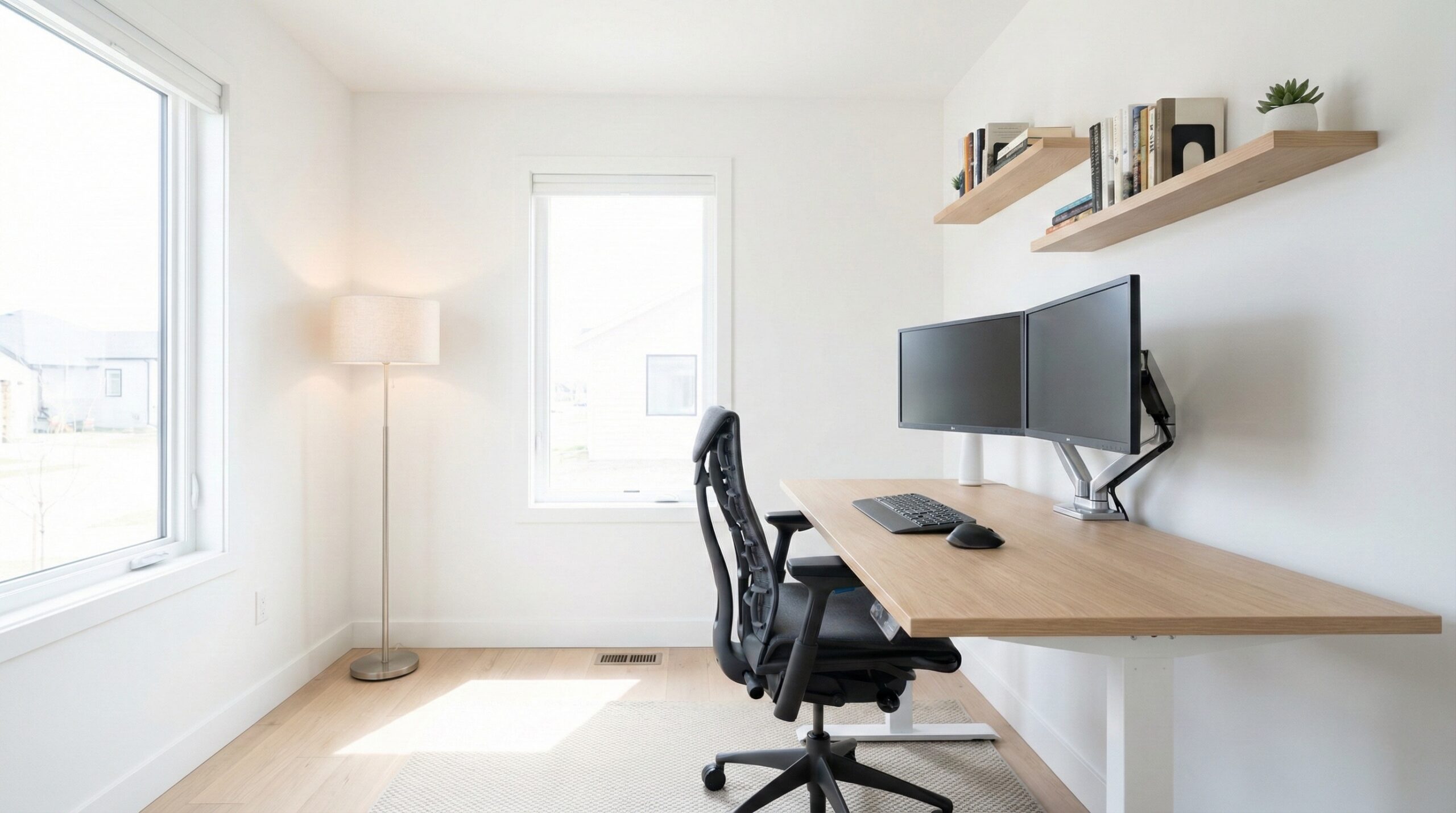
Building a professional home office involves balancing ergonomics, technical reliability, and spatial flow. Key highlights include prioritizing a 6-7 foot desk for dual-monitor setups and investing in high-end seating like the Herman Miller Aeron or Steelcase Leap v2 to prevent long-term back issues. For video, mirrorless cameras like the Sony ZV-E10 offer a significant quality jump over standard webcams. Managing cables via Thunderbolt docks and organizing your layout to leverage natural light without screen glare are essential for a productive, professional environment.
After spent years refining my own workspace and testing dozens of desk configurations, I’ve learned that a “good enough” setup eventually leads to a sore back or a messy workflow. I’ve spent months sitting in high-end chairs and troubleshooting why my video feed freezes during high-stakes calls. Your workspace is more than just a place to put your laptop; it is the foundation of your daily output. In 2026, the standard for a professional home office has shifted from simple utility to high-performance environments that rival corporate suites.
If you’re just starting to piece things together, our comprehensive guide to desk and workspace setups can help you visualize the basics. Setting up a professional office requires looking at your room as a system where lighting, furniture, and tech interact. It’s about creating a space where you actually want to spend eight hours a day.
1. Planning Your Office Layout and Room Flow
Placement: Against the Wall vs. Center of the Room
Most people instinctively push their desk against a wall to save space. While this is efficient, it can feel claustrophobic over time. If your room dimensions allow—specifically something around 14ft x 10ft—consider a center-room placement. This “startup vibe” allows you to face the door, which many find psychologically more comfortable. Having your back to the entrance can create a subconscious sense of “negative energy” or distraction. However, the biggest hurdle with center-room desks is cable management. Without a floor outlet, you’ll have wires trailing across the floor, which is a major trip hazard and an eyesore.
Managing Natural Light and Windows
Light is your best friend for video calls but your worst enemy for screen visibility. Positioning your desk perpendicular to a window is usually the sweet spot. If the window is directly behind you, you’ll look like a witness in a protection program during Zoom calls. If it’s directly in front of you, the glare on your monitors will cause eye strain by noon. If you have multiple windows, use blackout or sheer curtains to control the intensity throughout the day.
2. The Foundation: Ergonomic Furniture
Sit/Stand Desks and Custom Lengths
If you are running a dual-monitor setup, a standard 5-foot desk will feel cramped the moment you add speakers or a docking station. A 6-to-7-foot surface is the real “sweet spot.” Many developers and remote pros have moved toward custom solutions, like the Autonomous SmartDesk or even “IKEA hacks” using solid wood countertops (like the IKEA Ypperlig) paired with motorized standing legs. This gives you ample room to breathe and prevents your PC tower from crowding your mouse hand. If you’re working with a corner space, you might find inspiration in our review of the best L-shaped desks for large home offices.
The Battle of the Chairs: Aeron vs. Leap v2
The choice between the Herman Miller Aeron and the Steelcase Leap v2 is the most debated topic in ergonomics. For broader insights, our ergonomic seating reviews go deeper into these comparisons. Generally, the Aeron’s mesh keeps you cool, while the Leap v2 offers more aggressive lumbar support that many find superior for sciatica relief.
| Product Name | Best For | Price Range | Pros/Cons | Visit |
|---|---|---|---|---|
| Herman Miller Aeron | Breathability & Posture | $1,200 – $1,800 | Excellent mesh; rigid frame can be polarizing. | |
| Steelcase Leap v2 | Sciatica Relief | $1,000 – $1,300 | Highly adjustable; fabric can get warm. | |
| Autonomous SmartDesk | Versatile Standing | $500 – $800 | Stable motors; top surfaces can scratch easily. | |
| Sony ZV-E10 | Pro Video Quality | $700 – $800 | Interchangeable lenses; requires dummy battery. | |
| Keychron Keyboard | Mechanical Typing | $80 – $110 | Great tactile feel; case can be thick/high. | |
| MX Vertical Ergonomic Mouse | Wrist Health | $90 – $100 | Natural grip; steep learning curve. |
Herman Miller Aeron
The Aeron is often the first thing people think of when they hear “professional office.” In my testing, its Pellicle mesh is unmatched for breathability. If you live in a warmer climate or find yourself sweating through standard foam chairs, this is your solution. It forces you into a “proper” seated position, which is great for posture but can feel restrictive if you like to sit cross-legged or lean to the side.
What Works
- Mesh design prevents heat buildup during long sessions.
- The PostureFit SL hardware provides targeted support for the sacrum and lumbar.
- Incredible build quality with a 12-year warranty that justifies the price.
What Doesn’t
- The hard plastic rim on the seat pan can dig into your thighs if the sizing (A, B, or C) isn’t perfect.
- Limited back recline flexibility compared to “softer” ergonomic chairs.
Worth It? Best for professionals in warm climates who want a “forever” chair that strictly enforces good posture. Skip if you enjoy sitting in unconventional positions.
Steelcase Leap v2
While the Aeron is about suspension, the Steelcase Leap v2 is about adjustment. It feels more like a traditional chair but with a “LiveBack” system that mimics the movement of your spine. For those dealing with existing back pain, the Leap’s ability to adjust the firmness of the lower back area is a lifesaver. It’s a dense, heavy piece of furniture that feels incredibly grounding.
What Works
- Highly flexible front seat edge that reduces pressure on the back of your legs.
- The 4D armrests are some of the best in the industry for typing comfort.
- More accommodating for different body types than the Aeron’s rigid frame.
What Doesn’t
- The fabric seat can get noticeably warmer than mesh after several hours.
- The aesthetic is more “corporate office” and less “modern design” than Herman Miller options.
Worth It? Best for workers with sciatica or lower back issues who need a chair that adapts to every move. Skip if you prioritize a sleek, airy aesthetic.
Autonomous SmartDesk
Standing desks have become the standard, but stability is often where the cheaper models fail. The Autonomous SmartDesk offers a dual-motor system that handles heavy dual-monitor setups without wobbling at full extension. It’s a reliable workhorse for those who want to toggle between sitting and standing without breaking the bank on designer brands.
What Works
- Powerful motors that move smoothly even with heavy PC towers on top.
- Programmable presets make it easy to hit your perfect heights instantly.
- Spacious enough to accommodate large desk mats for standing desk setups.
What Doesn’t
- The desktop finishes (like white or black) can show fingerprints and scratches easily.
- Initial assembly is time-consuming; definitely set aside an hour or two.
Worth It? Best for users looking for a reliable, motorized transition between sitting and standing at a mid-range price. Skip if you need a “furniture-grade” solid wood finish.
Sony ZV-E10
Moving from a 1080p webcam to a mirrorless camera like the Sony ZV-E10 is the single biggest “upgrade” you can make for your professional presence. It provides that blurry background (bokeh) that makes you look like you’re in a studio. When paired with an Elgato Camlink 4K, it functions exactly like a webcam but with professional optics.
What Works
- Outstanding face-tracking autofocus that keeps you sharp even if you move around.
- Large sensor provides excellent low-light performance.
- The ability to swap lenses (like a Sigma 16mm) for different room looks.
What Doesn’t
- It requires a “dummy battery” to stay powered on for 8-hour workdays.
- The menu system is notoriously complex for beginners.
Worth It? Best for executives, consultants, and presenters who need to look exceptionally polished on video. Skip if you rarely use your camera for work.
Keychron Keyboard
The mechanical keyboard community loves Keychron because they bridge the gap between “enthusiast” gear and office-friendly usability. The typing experience is vastly superior to the mushy keys of a standard laptop. I personally find that the tactile feedback of these keys reduces my typing errors significantly during long coding sessions.
What Works
- Hot-swappable switches allow you to change the “clicky” feel without soldering.
- Full macOS and Windows compatibility with dedicated toggle switches.
- Heavy, durable chassis that doesn’t slide around your desk.
What Doesn’t
- The height of the keyboard can be taxing on the wrists; a wrist rest is almost mandatory.
- Mechanical keys can be loud enough to distract others in the house or get picked up on your mic.
Worth It? Best for writers and developers who want a satisfying, tactile typing experience. Skip if you work in a shared quiet space.
MX Vertical Ergonomic Mouse
If your wrist starts to throb by 4:00 PM, the MX Vertical is the cure. By turning your hand into a “handshake” position, it removes the pressure on your carpal tunnel. It takes a few days to get used to the vertical movement, but once you do, a standard flat mouse feels prehistoric.
What Works
- Reduces muscle strain by 10% according to Logitech’s research.
- Excellent battery life and quick USB-C charging.
- The “Flow” feature allows you to control multiple computers simultaneously.
What Doesn’t
- The “vertical” height makes it easy to accidentally knock it over when reaching for your keyboard.
- It’s physically large, so users with very small hands may find it difficult to reach the buttons.
Worth It? Best for anyone suffering from wrist pain or Repetitive Strain Injury (RSI). Skip if you have small hands or do high-precision graphic design.
3. High-Performance Tech and Peripheral Management
The ‘One Cable’ Dream: Thunderbolt Docks and KVM Switches
There is nothing more frustrating than unplugging six wires every time you move your laptop. A Thunderbolt dock—our look at tech and peripherals covers several—allows you to connect everything (monitors, mic, camera, ethernet) via a single USB-C cable. If you switch between a work MacBook and a gaming PC, a KVM switch is non-negotiable. It allows you to use one keyboard and mouse for both systems with the press of a single button.
Monitor Configurations: Dual 1440p vs. 49-Inch Ultrawides
The debate over screen real estate is personal. Dual 27-inch 1440p monitors are the classic choice for multitasking, providing two distinct spaces for “work” and “communication.” However, the 49-inch ultrawide is becoming the gold standard for deep work. It eliminates the bezel in the center, which is great for video editing or viewing massive spreadsheets, though some find it overwhelming for standard emails.
4. Professional Video and Audio for Virtual Meetings
Lighting Architecture
Even a $2,000 camera looks terrible in bad lighting. Instead of pointing a light directly at your face, try “bouncing” it. Aim an Elgato Key Light at the wall behind your monitor. The light will reflect off the wall and hit your face with a soft, natural glow that hides shadows and reduces skin glare.
Dedicated Audio: Vocal Mics and Boom Arms
Audio is actually more important than video. People will tolerate a grainy image, but they won’t tolerate robotic, echoing audio. A dedicated microphone like the Audio-Technica AE6100 mounted on a boom arm gets the mic close to your mouth without cluttering your desk. This setup filters out background noise, like your keyboard clicks or a distant lawnmower.
What Real Users Are Saying (Reddit Insights)
General Sentiment
Across communities like r/Workspaces and r/ExperiencedDevs, there is a clear trend toward “quality over quantity.” Users are moving away from cheap Amazon basics toward professional-grade gear. The consensus is that spending $1,000 on a chair you use for 40 hours a week is a better investment than a high-end GPU for a computer you only use for 10 hours of gaming.
Top Complaints & Warnings
“The ‘cable eye-sore’ is real. When I moved my desk to the middle of the room, I spent more on cable sleeves and under-desk trays than I did on the monitors.” — r/Workspaces
“Don’t rely on iPad Sidecar for a professional second monitor. The lag is frustrating, and it constantly disconnects during long calls.” — r/ExperiencedDevs
Users also frequently warn about software stability. Specifically, using OBS and NDI Virtual Input for video routing can lead to frequent freezing in Zoom or Teams, especially on MacBooks where the thermal throttling kicks in during heavy processing.
Budget Tips & Value Picks
The community’s favorite “hack” remains the IKEA kitchen table used as a desk. For roughly $250, you get a solid wood surface that is deeper and wider than most purpose-built office desks. For peripherals, the Logitech MX Keys is often cited as the best alternative for those who find mechanical keyboards too loud for shared households.
Other Notable Alternatives Worth Considering
- Panasonic GH5: An older but legendary mirrorless camera that offers incredible 4K video stability. Check on Amazon
- Logitech MX Keys: A low-profile, silent keyboard that mimics the feel of a high-end laptop. Check on Amazon
- Teleprompter PAD: Perfect for maintaining eye contact during high-stakes presentations. Check on Amazon
Best Home Office Gear by Segment
Best for Sciatica Relief
The Steelcase Leap v2 is the clear winner here. Its lower-back firmness control and flexible seat edge prevent the “numb leg” feeling that many standard chairs cause after four hours. Check the Leap v2 section above for details.
Best for Small Rooms (14×10 and under)
The Autonomous SmartDesk in its compact size, paired with an MX Vertical Ergonomic Mouse, saves horizontal space while maximizing comfort. By going vertical with your mouse and utilizing the desk’s height, you feel less “boxed in.”
Best for Developers
The combination of a Keychron Keyboard and dual 1440p monitors allows for the tactile feedback needed for coding and the screen real estate required for keeping documentation and IDEs open simultaneously.
Frequently Asked Questions
Is an iPad with Apple Pencil a good replacement for a physical whiteboard?
It’s excellent for individual brainstorming and Leetcode practice because of the infinite canvas. However, sharing that screen in a live Zoom call can be clunky. Most professionals use it as a “personal” whiteboard rather than a collaborative one. It complements a setup with a Keychron Keyboard well by providing a tactile break from typing.
How do I stop my OBS/NDI video feed from freezing in Zoom?
Freezing is usually a CPU or thermal issue. Ensure you aren’t running OBS at 4K if your meeting is only 720p. Using a hardware capture card like the Elgato Camlink 4K offloads much of the processing, making your Sony ZV-E10 feed much more stable than a software-only NDI solution.
What desk size do I need for a dual monitor setup?
Avoid 5-foot desks if possible. A 6-foot (72-inch) or 7-foot desk provides enough room for two 27-inch monitors plus external speakers. This extra width prevents you from feeling crowded and allows you to keep your PC tower on the desk if you prefer. The Autonomous SmartDesk offers several wide-top options for this purpose.
Should my desk face the wall or the door?
Facing the door is generally better for focus and “room flow,” as it prevents people from walking up behind you. However, it requires a wireless setup or elite cable management to hide the wires. If you choose the wall, consider a large mirror on an adjacent wall to open up the space and reduce claustrophobia.
Which ergonomic chair is better for sciatica: Aeron or Leap?
The Steelcase Leap v2 is generally preferred for sciatica because of its adjustable lumbar firmness and flexible seat edge. The Herman Miller Aeron is great for posture but has a hard plastic frame that can sometimes aggravate leg pain if the seat size isn’t a perfect match for your body. For more on this, check out our guide on office peripherals for peripheral power management.
Setting up a professional home office is an iterative process. You might start with a great chair and realize your lighting is the next bottleneck. By focusing on the “big three”—ergonomics, lighting, and reliable tech—you create a space that supports your career rather than draining your energy. Don’t be afraid to mix and match; sometimes an IKEA desk with a high-end Herman Miller chair is the perfect balance for your budget and needs.
Disclosure: We earn a small commission on qualifying purchases through our Amazon links, at no extra cost to you.
Affiliate disclosure: This page includes affiliate links. Purchases through these links support our work at no added cost.