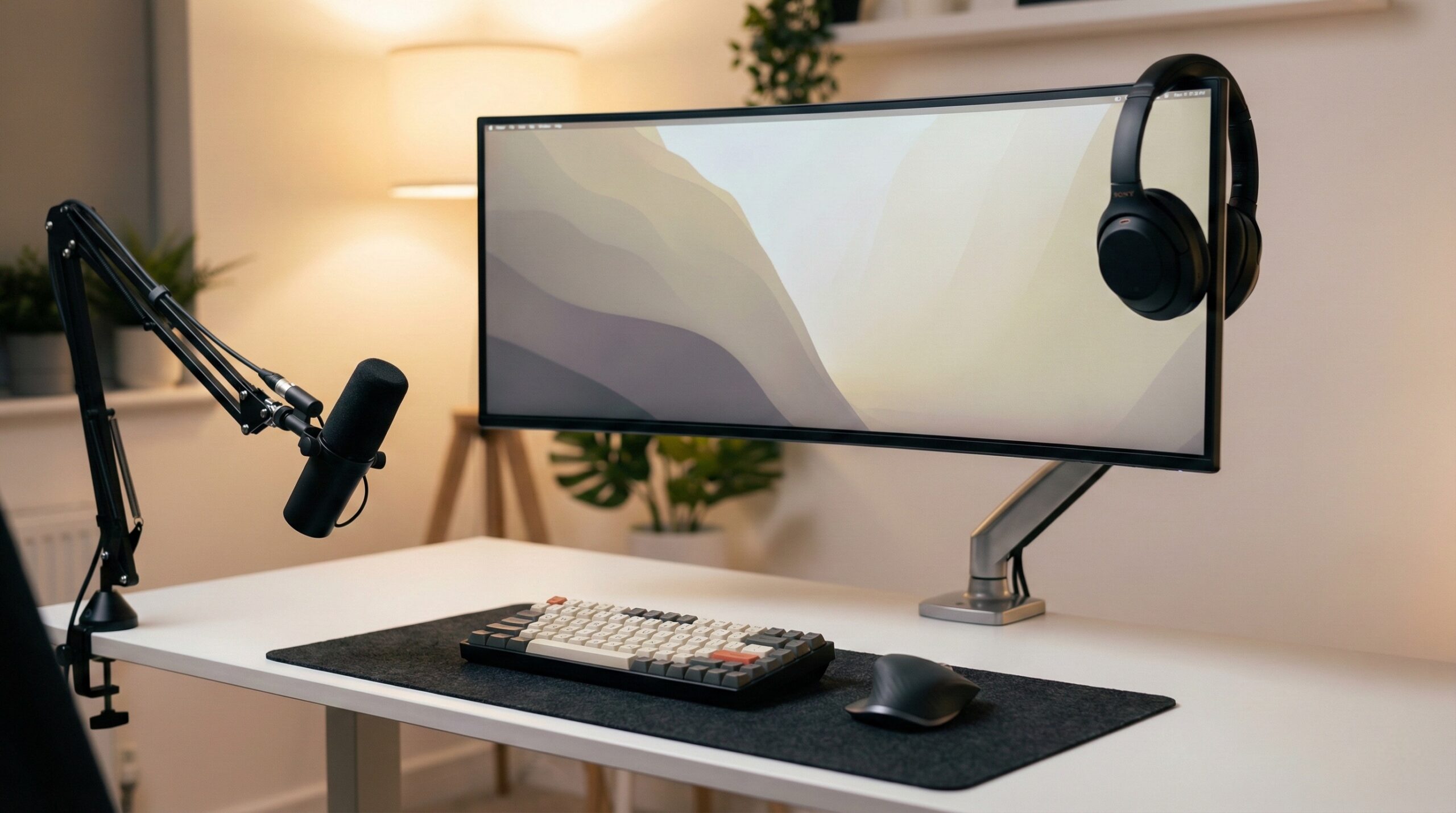
TL;DR
For most home-office setups, the “best” curved monitor for work is the one that keeps text comfortable for long stretches and doesn’t create daily hassles with ports, charging, or sleep/wake. A 34-inch 3440×1440 ultrawide with a moderate curve is a practical sweet spot for multitasking, but you’ll still want to sanity-check USB-C behavior, ergonomics, and text rendering on your Mac or PC during the return window.
Top Recommended Tech & Peripherals
| Product | Best For | Price | Pros/Cons | Visit |
|---|---|---|---|---|
| Dell Alienware AW3420DW 34-Inch Curved Monitor | Mixed office work + smooth motion | $650 – $700 | Big 34″ 3440×1440 workspace; gamer styling and specs can be overkill | Visit Amazon |
| MSI MPG 341CQPX 34-Inch Curved Monitor | Premium color/contrast for work + play | $750 – $950 | QD-OLED “pop” and deep blacks; OLED can bring text-fringing or burn-in worries for static UI | Visit Amazon |
Top Pick: Best Overall Tech & Peripherals
Dell Alienware AW3420DW 34-Inch Curved Monitor
Best for: A home-office worker who wants one big ultrawide for docs, email, spreadsheets, and occasional after-hours gaming — especially if you keep your screen about an arm’s length away and don’t want to fuss with scaling all day.
The Good
- The 34-inch 3440×1440 ultrawide format is a productivity classic: enough horizontal space for two documents side-by-side, wide timelines, or a big spreadsheet view without feeling like you’re “stacking” windows all day.
- A curved ultrawide can reduce how far your eyes (and head) need to travel to see the far left and right edges versus a flat 34-inch panel, which many people find more comfortable for long sessions.
- It’s a high-refresh model, which can make cursor movement, window dragging, and scrolling feel smoother (even in basic office work), not just in games.
- Buyer feedback suggests strong overall satisfaction with the core “specs and smoothness” proposition for an ultrawide.
The Bad
- It has a clearly gaming-forward look — if your workspace aesthetic is more “clean and minimal,” this may clash.
- For strictly office tasks (email, docs, browser tabs), you may be paying for performance you don’t actually use.
- As with many ultrawides, you’ll want to test sleep/wake reliability and how your OS handles scaling and font rendering, especially on Macs.
4.6/5 across 1,552 Amazon reviews
“A Solid WIN but with only the Right Specs.This Monitor is very high specResolution is 3440X1440 with G Sync and 120 htz refresh.It’s a very bright display has to be around 450 nits Max brightness. It’s so bright I use only Game 2 mode in RPG setting I can’t use anything brighter trust me it’s rediculously bright. You will have to turn down settings in the…” — Verified Amazon buyer (5 stars)
“The monitor is amazing with little IPS glow which is amazing.The borders are huge tho.the bottom seemed a bit disoriented.Could be because it’s curved but nothing major.” — Verified Amazon buyer (4 stars)
Typical price: $650 – $700
“Alienware 34inch oled ultrawides are fantastic” — r/ultrawidemasterrace discussion
Our Take: If you want a single curved monitor that’s genuinely roomy for work and feels “buttery” in motion, this Dell Alienware is a solid default — just be honest about whether you want a work-first look and whether the gaming extras are worth the premium for your day-to-day.
MSI MPG 341CQPX 34-Inch Curved Monitor
Best for: A hybrid worker who does creative tasks (design, photo/video reviewing) and also wants a curved ultrawide for daily productivity — especially in a dimmer room where OLED contrast really shines.
The Good
- QD-OLED panels are known for standout contrast and “inky” blacks, which can be great for creative work, media, and any UI where you value clarity between dark and light elements.
- The 34-inch ultrawide layout is genuinely useful for multi-window workflows: browser + doc, Slack + task board, IDE + preview, etc.
- It’s positioned as a high-end, mixed-use option — appealing if you want one monitor that can handle work by day and entertainment by night.
- User reports we’ve seen are positive early on, which matters with newer, premium panel tech where reliability and day-to-day comfort can vary.
The Bad
- For work-first buying, the biggest risk with OLED-style panels is static UI: think menu bars, app toolbars, and persistent dock/taskbar elements (burn-in risk management becomes part of ownership).
- Some people notice text fringing on certain OLED subpixel layouts — which is the opposite of what you want if you read and write for 6–10 hours a day.
- The work-specific “it just docks perfectly with my laptop” story can be inconsistent across setups, so you’ll want to validate your own USB-C/OS behavior quickly.
4.5/5 across 436 Amazon reviews
“I recently upgraded to the MSI MPG 321CURX QD-OLED, and it has completely transformed my gaming experience. If you’re on the fence about jumping to 4K OLED, let me tell you — this is the one to get.What I Love:Visual Immersion: The QD-OLED panel is stunning. The blacks are perfectly deep, and the colors pop in a way that my old monitors never could. Playing…” — Verified Amazon buyer (5 stars)
“I’m very pleased with this monitor so far, having had it for a week. Playing through the intro to Horizon: Forbidden West, in glorious HDR, is simply incredible. Even the HDR demos on youtube leave me with my jaw to the floor.What surprised me the most was all the things that reviews of QD-OLED monitors warn you about, and how those turned out to be…” — Verified Amazon buyer (4 stars)
“MSI MPG 341CQPX QD-OLED 34" 240Hz 0.03ms UWQHD Curved Gaming Monitor 98W USB-C” — r/ultrawidemasterrace discussion
Our Take: If you’re willing to manage OLED tradeoffs (static UI habits, brightness, and text comfort testing), this MSI can be a gorgeous curved ultrawide for mixed work and creative use — but it’s not the “set it and forget it” choice for text-heavy office life.
Other Notable Alternatives Worth Considering
- Dell U3419w Ultrasharp 34-Inch WQHD (3440×1440) Curved IPS — A well-known work-leaning Ultrasharp-style concept on paper (IPS, 34-inch WQHD ultrawide). It’s listed in this category based on retailer data; we haven’t independently verified specific performance, revisions, or current-day USB-C behavior.
FAQ
What curve radius is best for work?
For most office tasks, a moderate curve tends to feel the most natural — aggressive curves can make straight gridlines (spreadsheets) or code columns feel subtly “bent.” If your day is mostly text and spreadsheets, prioritize comfort and consistency over immersion, and consider a milder curve in the typical ultrawide range (many work-friendly models cluster around that middle ground).
Is 34-inch 3440×1440 sharp enough for text work?
Often, yes — it’s a popular balance of workspace and readability, especially at typical desk viewing distances. The catch is that it isn’t “true HiDPI” the way some 4K/5K setups can be, so it’s smart to test your real workflow (small fonts in spreadsheets, code editors, browser UI) and confirm you can run a comfortable scaling level without blur or eye fatigue.
Should I choose IPS, VA, or OLED for a work monitor?
For work-first use, IPS is usually the safe choice because it stays consistent across viewing angles — helpful on a wide curved panel when you lean back or share your screen. VA can offer stronger contrast but can vary more by model in motion handling and viewing-angle consistency. OLED/QD-OLED can look incredible, but for office work you should weigh potential text rendering quirks and the long-term reality of static UI elements.
How much USB-C power delivery do I need for laptop work?
A good rule of thumb is: match (or at least closely approach) the wattage your laptop normally expects from its charger, especially if you run heavier loads (lots of browser tabs, video calls, external drives). Even if a monitor supports USB-C video, the “one-cable desk” experience depends on enough power delivery plus stable hub behavior for peripherals.
Will a curved monitor work well with a Mac?
Usually, but it’s worth testing a few practical things right away: sleep/wake reliability, whether the monitor reconnects cleanly, and whether any built-in USB hub stays stable after waking. Also check that macOS scaling looks crisp enough for your preferences. For eye comfort guidance that applies regardless of Mac or PC, see the American Optometric Association’s Computer Vision Syndrome guidance.
Does HDR matter for office work?
For most office tasks, HDR isn’t a priority compared with text clarity, matte glare control, and ergonomics. If you do care about HDR for occasional media work, it helps to understand that “HDR” marketing varies a lot; the VESA DisplayHDR standard is a useful baseline for interpreting what a monitor can realistically do.
How should I set up a curved monitor to reduce neck and eye strain?
Start with basics that ergonomics guidance consistently supports: center the monitor in front of you, keep the top of the screen around eye level (adjust as needed for bifocals), and aim for a comfortable viewing distance so you’re not leaning forward. Curvature can help edge visibility, but it doesn’t replace good setup habits, breaks, and sensible brightness. If discomfort persists, a certified ergonomist or occupational therapist can help you tailor monitor height, chair setup, and viewing distance to your body and tasks; standards like ISO 9241-303 are also commonly referenced for display ergonomics requirements.
Bottom Line
For most people shopping for a curved monitor for work, the safest bet is still a 34-inch 3440×1440 ultrawide that’s comfortable for text, easy to position, and reliable day-to-day. The Dell Alienware AW3420DW is our top pick because it delivers a roomy ultrawide workspace with smooth motion that feels good across mixed office tasks. If you’re tempted by OLED for the visuals, the MSI MPG 341CQPX can be fantastic — just go in with eyes open about text comfort and static-UI habits.
Affiliate disclosure: This page includes affiliate links. Purchases through these links support our work at no added cost.