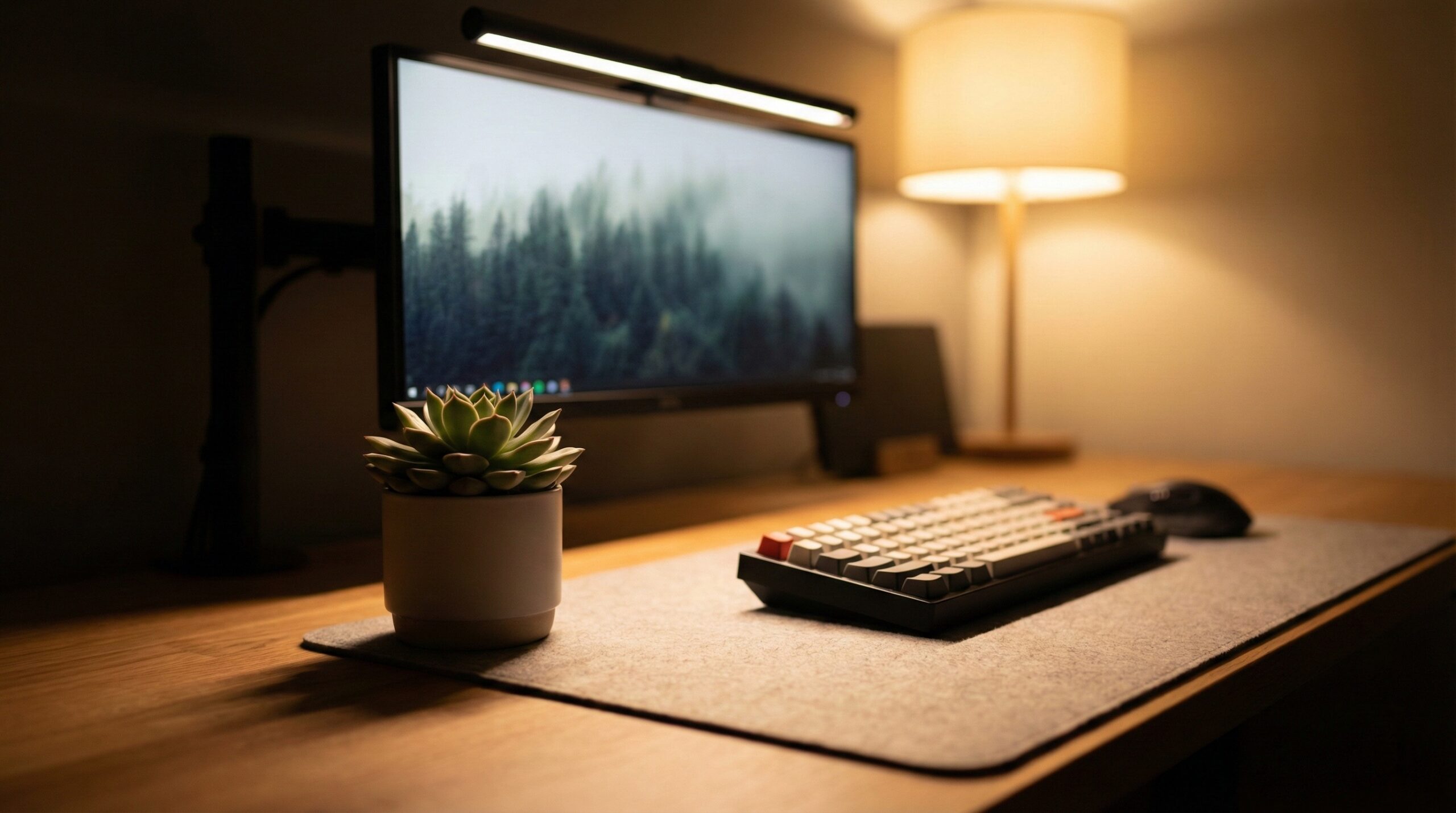
TL;DR
For multiple monitors, the biggest make-or-break issues are clamp fit (especially if you have curved backs or chunky top bezels) and glare control when your screens are angled. In most dual- and triple-monitor setups, you’ll get more even desk lighting with one bar per monitor — and you’ll want a control method that makes it fast to match brightness and color temperature across two or three lights.
Top Recommended Monitor Light Bars for Multiple Monitors
| Product | Best For | Price | Pros/Cons | Visit |
|---|---|---|---|---|
| BenQ ScreenBar Halo | Premium dual monitors + bias lighting | — | Great polish and rear ambient option; pricier and the premium isn’t worth it for everyone | Visit BenQ |
| Govee Light Bars | Ambient/bias lighting behind multiple screens | — | Easy back-of-monitor mounting for multi-screen glow; not a true top-mounted task light bar | Visit Govee |
| Quntis Monitor Light Bar PRO+ with Remote Control | Value-focused two-bar setups with a remote | $50 – $75 | Remote makes it easier to adjust in multi-monitor rigs; clamp fit and beam control still need a careful check | Visit Amazon |
Top Pick: Best Overall Monitor Light Bars for Multiple Monitors
BenQ ScreenBar Halo
Best for: a premium dual-monitor home office (like two 27-inch flat panels angled inward) where you want both front task lighting and optional rear/bias lighting for nighttime comfort.
The Good
- Strong “premium pick” track record in the category, and BenQ publishes practical selection guidance — helpful when you’re deciding whether you need one bar per monitor.
- The bias/rear light concept is genuinely relevant for multi-monitor rigs used in darker rooms, where a bright desk light alone can make the screens feel harsh.
- A good fit for people who care about a clean, integrated look on a two- or three-screen desk (especially on monitor arms where you don’t want extra lamps taking up space).
- Better aligned with glare-avoidance best practices than a generic desk lamp positioned behind you, since monitor light bars are designed to throw light down toward the work surface rather than into your eyes.
The Bad
- Cost adds up quickly if you need one per monitor (two or three units can become a serious investment).
- Some home office worker reviews question the value of paying extra specifically for the rear light feature.
- As with any light bar, clamp compatibility can still be the deal-breaker on certain monitor shapes (curved backs, stepped housings, very thin top edges).
4.1/5 across 248 Trustpilot reviews (source)
“Bought a brand new monitor, monitor was nothing like advertised and when I arranged a return I was met with nothing but issues. I was provided with a return label that was…” — Trustpilot review
“I have 4 BenQ computer monitors for my various computer set ups which are extremely good machines. I recently had a problem with one monitor which stopped working late one…” — Trustpilot review
“BenQ Halo’s rear light is just not worth the premium.” — r/battlestations discussion
Our Take: If you’re building a nicer dual-monitor desk and you’ll actually use the bias lighting at night, the ScreenBar Halo is a strong “spend once” option — but if you just want bright, even desk illumination across multiple panels, you may be happier putting the budget toward two simpler bars instead.
Govee Light Bars
Best for: multi-monitor users who mainly want ambient/bias lighting behind the screens (for example, a triple-monitor gaming-and-work hybrid setup in a dark room) rather than a top-mounted task beam onto the desk.
The Good
- Works around the #1 multi-monitor headache (top-bezel clamp fit) by mounting behind the display instead of on top.
- Flexible placement: you can position the bars behind the left/right monitors independently, which scales nicely when your screens are angled or spaced apart.
- User reports note that Govee bars can get quite bright, which helps if you want your wall wash to compete with the light coming off two or three monitors.
- Good “add-on” lighting for comfort: bias lighting can reduce the perceived contrast between bright screens and a dark room.
The Bad
- Not a true monitor light bar in the classic sense (it won’t replace front task lighting for writing, reading paper, or keyboard-heavy work).
- Adhesive mounts are convenient but can be annoying to reposition cleanly if you frequently change monitors or layouts.
3.5/5 across 893 Trustpilot reviews (source)
“I bought a set of Govee light bars. There’s sticky mounts to place it on the back of the monitor.” — r/AskBattlestations discussion
“Govee lights can get real bright for their tv or gaming ones,” — r/battlestations discussion
Our Take: If your main goal is comfortable background glow across multiple monitors (and you don’t want to gamble on clamp fit), Govee Light Bars are a practical route — just plan on a separate task light solution if you need real desk illumination.
Quntis Monitor Light Bar PRO+ with Remote Control
Best for: a value-focused dual-monitor work setup (like two 24-inch or 27-inch flat monitors) where you want remote control so matching brightness/color across two bars doesn’t become a daily annoyance.
The Good
- Remote control is the feature that matters most when you’re running two or three bars — it’s much easier than reaching up to each unit to tweak settings.
- Good review volume on Amazon suggests it’s a common, accessible pick for everyday home office builds.
- Typically makes sense as a “buy two” option for dual monitors, since the per-unit price is often far lower than premium models.
- Helps you keep your desktop clear compared with a pair of traditional desk lamps.
The Bad
- Clamp fit is still the #1 thing to confirm before buying (especially if one of your monitors has a different top bezel shape or thickness than the other).
- With angled monitors, beam placement and tilt matter a lot — a light bar can still cause reflections if the throw hits the screen at the wrong angle.
4.4/5 across 2,319 Amazon reviews
“I’ve just received the Quntis Monitor Light Bar PRO+ with Remote Control, and it’s honestly one of the best desk upgrades I’ve made.The lighting quality is outstanding — bright, even, and completely glare-free on my screen. It provides just the right amount of illumination for working, reading, or late-night scrolling without straining my eyes. The adjustable…” — Verified Amazon buyer (5 stars)
“This hurts to write. It really does. For nearly two years, this light bar was my perfect companion. Its glow was gentle, the remote was convenient, and I truly believed I had made a wise investment. I didn’t buy the cheapest option, specifically to avoid this.But today, without warning, it just died. A product that felt premium, now completely dark after…” — Verified Amazon buyer (1 stars)
Typical price: $50 – $75
Our Take: If you want a straightforward two-bar setup with easier day-to-day adjustments, this Quntis model is a sensible place to start — just measure your top bezels first and be ready to fine-tune bar tilt to avoid glare.
How to choose monitor light bars for 2–3 monitors (quick decision checklist)
In a multi-monitor setup, you’re not just buying a light — you’re buying compatibility and repeatability. Here’s the order we’d use to decide.
- Decide one bar per monitor vs. one centered bar: If your monitors are angled inward, separated by a gap, or different sizes, one bar per monitor usually gives you the most even lighting. A single centered bar only makes sense when the displays are flush and parallel (and you don’t mind slightly uneven light near the far edges).
- Verify mounting first: Measure each monitor’s top “lip” thickness and look at the back shape near the top edge. Many clamps assume a relatively flat back — curved housings, vents, and stepped designs can cause slipping or poor contact, which is frustrating when you’re trying to mount two bars consistently.
- Prioritize glare control: Workplace lighting guidance generally emphasizes controlling reflections and glare at the screen. Monitor light bars aim to throw light forward and down onto the desk; you still need to test by sitting at your normal height and checking whether any bright hotspot shows up on either monitor when they’re angled.
- Pick controls that scale: For two or three bars, remote/knob-style control is simply faster than tapping on-bar buttons. The practical goal is to match brightness and color temperature across units quickly, so your desk doesn’t look like three different “whites.”
- Plan power + cables: Two or three bars means two or three USB power runs. Decide if you’ll power them from monitor USB ports, a powered USB hub, or wall adapters — and route cables along monitor arms so nothing tugs when you reposition screens.
- Consider bias lighting as an add-on: Rear lighting can improve comfort in darker rooms, but it doesn’t replace front task lighting. If you frequently write on paper, read printed documents, or do detailed keyboard work, you still want a controlled front beam onto the desk.
Other Notable Alternatives Worth Considering
- LYMAX Monitor Light Bar Eye-Care USB Computer Lamp — This is listed in the monitor light bar category based on retailer data; we haven’t independently verified specific performance or clamp fit for multi-monitor installs. If you’re browsing, treat it as a “compare specs carefully” option and double-check return terms in case your monitor top bezel doesn’t match the clamp.
FAQ
Do I need one monitor light bar per monitor?
Often, yes — especially if your monitors are angled inward or there’s a gap between them. A single centered bar can leave the outer edges of a dual-monitor desk noticeably dimmer, while two bars let you aim each beam where it belongs (one per panel) and reduce the urge to crank brightness high enough to “reach” the far side.
Will a light bar fit my monitor?
Clamp fit is the #1 failure point in multi-monitor setups because your two screens may not have the same top edge thickness or rear shape. Measure the top bezel thickness, then look for anything that blocks a clamp from sitting flat (curved backs, ridges, vents, or a “step” near the top). If you use monitor arms and move screens a lot, stability matters even more, since a marginal clamp can shift over time.
Do monitor light bars cause screen glare?
They can, particularly when monitors are angled and the light lands on the screen at a reflective angle. The general ergonomics goal is to reduce glare and reflections at the workstation — guidance like NIOSH ergonomics resources aligns with the idea of controlling reflections rather than overpowering them with brighter light. Practically: set the bar so the brightest part of the beam hits the desk in front of the monitor, then sit at your normal position and scan both screens for hotspots.
What’s the best control type for multiple bars?
A remote or external controller is usually the easiest for two or three bars, because you can match brightness and color temperature without reaching up behind your monitors. On-bar touch buttons are fine for a single monitor, but with multiple units, the friction adds up fast — and you’re more likely to leave settings mismatched.
Is bias lighting the same as a monitor light bar?
No. A monitor light bar is primarily task lighting (forward and down onto your desk), while bias lighting is ambient light behind the display that brightens the wall and can make nighttime viewing feel more comfortable. Bias lighting can help balance a dark room, but it won’t light your keyboard and desk surface the way a true light bar will.
How should I power two or three light bars cleanly?
Count ports first: each bar needs power, so a dual-monitor setup usually means two USB power sources (or one powered hub with multiple outputs). If your monitors have reliable USB ports, that can keep things tidy; otherwise, a powered USB hub or wall adapters can be more stable. Route the cables along monitor arms or the back edge of the desk so moving a screen doesn’t tug on the bar.
Where should I start with brightness and color temperature for desk comfort?
Start moderate — bright enough to clearly see your keyboard and any paper on the desk, but not so bright that it makes your screens look washed out. If you’re unsure, a certified ergonomist or occupational therapist will typically prioritize reducing harsh contrast and glare: keep the desk comfortably lit, avoid reflections on the screen, and adjust from there based on your room lighting and monitor brightness.
Bottom Line
For most multi-monitor home offices, the safest “default” approach is one light per monitor, an optics design that aims light down onto the desk (to limit glare), and controls that make it easy to match settings across units. The BenQ ScreenBar Halo is our top pick for a premium dual-monitor setup where you’ll actually use the rear/bias lighting — but if you’re mainly chasing even task lighting across two screens, prioritize clamp fit and simple repeatable controls over extra features.
Affiliate disclosure: This page includes affiliate links. Purchases through these links support our work at no added cost.