TL;DR
If you’re sitting at a desk 2–3 feet from the screen for work, a monitor is usually the safer buy for crisp text, simpler PC connectivity, and predictable refresh-rate behavior. A TV can absolutely work as a “giant monitor,” but you need to confirm true 4:4:4 chroma in a PC/Game mode at the resolution and refresh you’ll actually use — and you’ll want enough viewing distance that the size doesn’t feel overwhelming.
Top Recommended Tech & Peripherals
| Product | Best For | Price | Pros/Cons | Visit |
|---|---|---|---|---|
| Alienware AW3423DW 34.18-inch Quantom Dot-OLED Curved | Desk-first PC use + ultrawide gaming | $550 – $650 | OLED contrast with 175Hz feel; OLED burn-in risk + some reliability complaints | Visit Amazon |
| Sony 42-Inch class BRAVIA XR A90K 4K HDR OLED Google TV | Big-screen mixed use (desk + couch) | $1150 – $1250 | Excellent movies/HDR and 42" size; needs correct PC mode/settings for text + OS quirks | Visit Amazon |
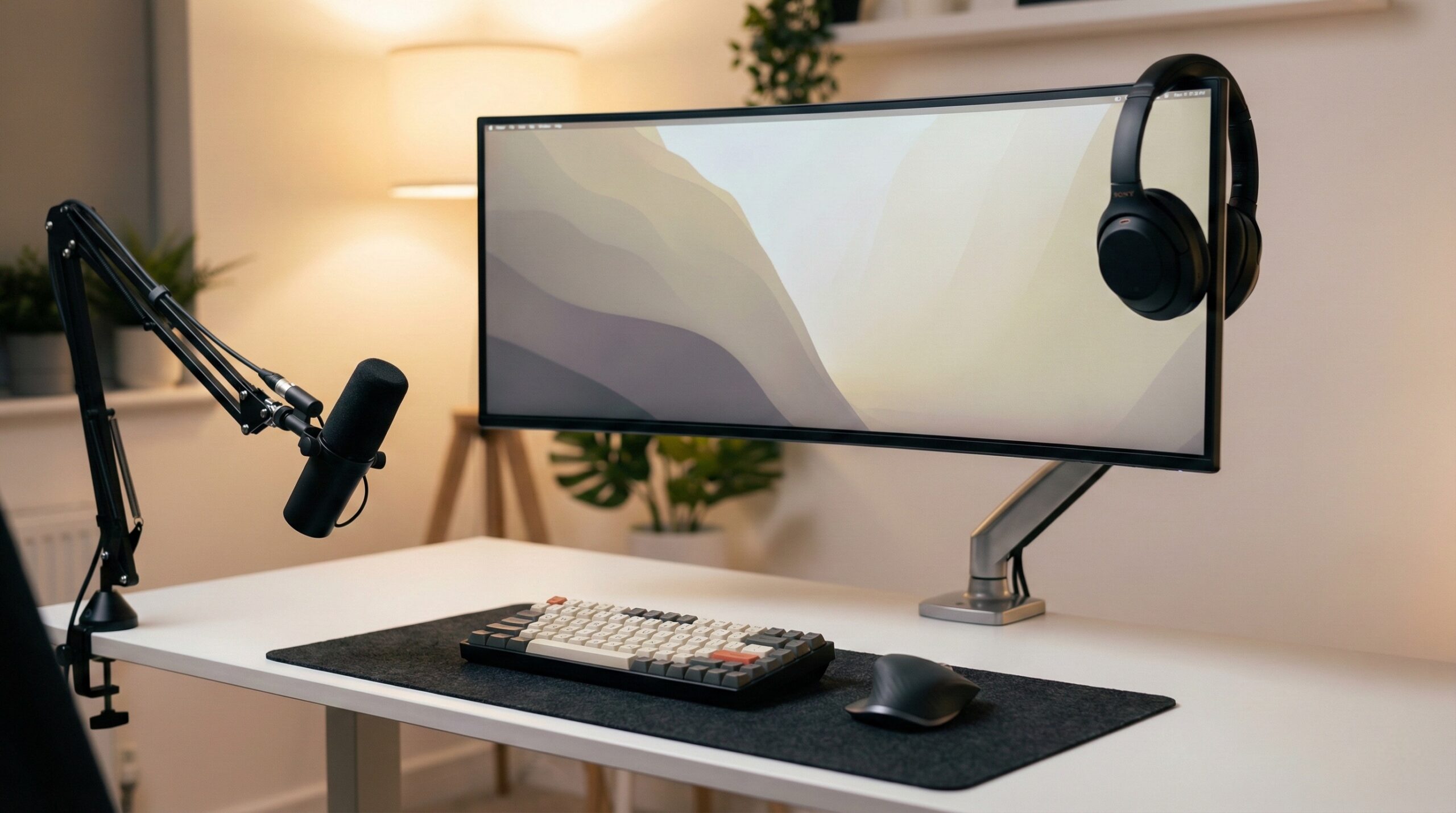
Alienware AW3423DW 34.18-inch Quantom Dot-OLED Curved
Best for: Home office workers who want a monitor-first setup (DisplayPort, high refresh, ultrawide workspace) and also care a lot about deep blacks and HDR pop for gaming/media.
The Good
- Monitor-first behavior for PCs: In the “tv vs monitor” debate, this is the straightforward path — plug in, select your refresh rate, and you’re working without TV-style processing/overscan surprises.
- Ultrawide multitasking: A 34" ultrawide can replace dual monitors for many people — two documents side-by-side, timeline editing, or chat + browser + spreadsheet without constantly alt-tabbing.
- OLED contrast for mixed use: Great for dark UI themes, movies, and games where black levels and per-pixel lighting matter.
- High refresh “snappy” feel: User reports frequently describe OLED monitors as feeling extremely immediate for cursor movement and scrolling, and the 175Hz class refresh helps with perceived smoothness.
The Bad
- OLED burn-in risk with static UI: Long hours of taskbars, menu bars, spreadsheets, and IDE sidebars can increase burn-in risk; you’ll want to use pixel refresh / panel care tools and be mindful of static elements.
- Some reliability/condition complaints: Home office worker reviews mention issues like power/display failures and frustration about repair/warranty pathways — especially relevant if you’re buying renewed or refurbished.
- Not a “big TV” substitute: If your goal is a huge living-room-sized screen for across-the-room viewing, an ultrawide monitor isn’t trying to do that job.
3.8/5 across 26 Amazon reviews
“I was a bit skeptical about buying from this company, some reviews were negative and talked about the monitor being either broken or damaged or not working properly. Some even said the packaging was awful but I experienced literally none of those things. So far the monitor is working just fine, they sent me the dwf model instead of the dw model which was a…” — Verified Amazon buyer (5 stars)
“Was swinging it to the side and the screen popped, the display is now all lines on one side. Dell doesn’t do repairs. It’s a great monitor but way too expensive to have to replace it every year, Dell should be ashamed.” — Verified Amazon buyer (1 stars)
Typical price: $550 – $650
"So far the monitor is working just fine, they sent me the dwf model instead of the dw model which was a bonus for me" — verified buyer, 5 stars
Our Take: If your question is “TV vs monitor for a desk,” this is the kind of product that makes the argument for monitors: it’s built for close-up text, PC refresh-rate controls are typically simpler, and you’re not fighting a smart TV OS. The caution is OLED ownership: it can be spectacular for games and video, but we’d set it up with aggressive screen-saver behavior, auto-hide taskbar, and whatever panel-protection features are available if you work long static hours.
Sony 42-Inch class BRAVIA XR A90K 4K HDR OLED Google TV
Best for: People who want one screen that can serve as a desk display and a serious TV for streaming, controller gaming, and couch viewing — especially if you can sit a bit farther back from the desk.
The Good
- Size that can work at a desk (with enough depth): 42" is the “small TV” size many people consider for a desk setup; it can feel immersive without jumping all the way to 55"+.
- Excellent media experience: OLED strengths show up immediately in movies and HDR content — deep blacks, strong perceived contrast, and a very “TV-like” presentation.
- Built-in smart TV features: For mixed use, it’s convenient to have streaming apps, a remote, and a TV OS that doesn’t require a PC to watch content.
- Potentially solid gaming features (when configured): Many modern TVs offer ALLM/VRR support and low-latency game modes over HDMI — helpful if you’re using consoles or a PC with HDMI 2.1 output.
The Bad
- Text clarity depends on settings/modes: TVs can look fantastic for video while still being “just okay” for desktop text if you’re not in the right HDMI input label/PC mode or you don’t have 4:4:4 chroma at your chosen refresh.
- Smart TV OS friction is real: User reports mention software updates and channel/app behavior issues; that kind of friction is the tradeoff you don’t usually deal with on a monitor.
- OLED burn-in risk still applies: If you use it like a monitor all day (taskbar, browser tabs, static HUDs), you should treat it like any OLED: use mitigation features and vary content.
3.6/5 across 11 Amazon reviews
“It was easy to set up and worth the money:)” — Verified Amazon buyer (5 stars)
“I don’t like Android, Software unnecessary complication, I’ve had it over a year it is a horrible piece of junk.The latest software update made the TV even worse, TV wont stay on channel, at times it flips between channes on its own. I have to keep rebooting the piece of junk TV.I had to reboot this android piece of garbage 7 times to get it to work…” — Verified Amazon buyer (1 stars)
Typical price: $1150 – $1250
"The latest software update made the TV even worse, TV wont stay on channel, at times it flips between channes on its own." — verified buyer, 1 stars
Our Take: This is the most realistic “TV as monitor” style option in our lineup because 42" is at least plausibly desk-friendly—if your desk is deep enough or you can wall-mount it. If your day is mostly reading, writing, spreadsheets, or coding, we’d still lean monitor first; but if your priorities include streaming, console gaming, and “big screen” feel, a 42" OLED TV can make sense as long as you’re willing to do the settings homework.
TV vs Monitor: the decision drivers that actually matter
“TV vs monitor” gets oversimplified into “TV is cheaper per inch” vs “monitor is sharper.” In real home office setups, the best choice usually comes down to four practical questions:
- How close will you sit? Desk distance (often ~2–3 feet) punishes soft text and awkward ergonomics.
- Is your day text-heavy? Coding, spreadsheets, writing, and reading make text clarity non-negotiable.
- What refresh rate and resolution will you run? 4K60 vs 4K120 vs 1440p changes the bandwidth/features you need.
- Are you buying OLED? OLED looks amazing, but static UI elements are a real consideration for long hours.
Text clarity: why 4:4:4 chroma is the make-or-break detail
When a TV is used as a PC display, the #1 complaint we see is some version of: “Movies look great, but text looks weird.” The technical reason is often chroma subsampling. In short: video content can tolerate reduced color detail, but desktop UI and small fonts really can’t.
If a TV isn’t delivering true 4:4:4 chroma at your chosen resolution/refresh, you may see soft edges or colored fringing around text. RTINGS has a solid explainer on why this happens and how to think about it in real-world PC use — see RTINGS’ chroma subsampling guide.
What to do if you’re trying a TV on your desk:
- Look for a “PC Mode” or “Input Label: PC” option. Many TVs require this to enable full chroma and correct pixel mapping.
- Disable overscan. You want 1:1 pixel mapping so the TV isn’t scaling your desktop (scaling can blur text).
- Neutralize sharpness/edge enhancement. TV sharpening can make video look punchy but can create halos or crunchy text.
- Confirm the exact mode you’ll use. A TV might do 4:4:4 at 4K60 but not at 4K120 (or only with specific settings toggled).
Monitors generally win here because they’re designed for desktop UI: pixel mapping is typically correct by default, and there’s usually less hidden processing.
Latency vs response time: why “low input lag” doesn’t always mean “clear motion”
A lot of buyers mix up two different things:
- Input lag: how long it takes for your mouse movement or controller input to show up on screen (mouse-to-photon delay).
- Pixel response time: how fast pixels change (which affects motion blur/smearing).
Some TVs have excellent input lag in a game mode and can feel responsive, especially for controller gaming. But a fast gaming monitor often still wins in motion clarity because it’s built around higher refresh rates, faster transitions, and PC-centric tuning.
How we’d pick based on what you play:
- Competitive gaming (FPS, fast esports): lean monitor. High refresh + consistent VRR behavior + fast response usually matters more than sheer size.
- Casual single-player + media: a good TV in game mode can be “responsive enough,” and the bigger screen can be more immersive.
- Mixed desk work + gaming: it depends on your tolerance for the TV setup friction (modes/settings) and whether text clarity is perfect at your target refresh.
If you want VRR on a PC, NVIDIA has guidance on what to expect with variable refresh and compatible displays (helpful for understanding why some setups feel smoother than others): NVIDIA G-SYNC compatible display guidance.
Size, viewing distance, and ergonomics (where TVs usually lose at a desk)
Even when a TV is technically “good enough” for PC use, it can still be a poor home office choice if the size doesn’t match your viewing distance. At typical desk depth, very large screens can force excessive head/eye movement — fatiguing for spreadsheets, email, and long writing sessions.
Practical sizing guidance for desk-first use:
- 27" 1440p is a common sweet spot for all-day readability without needing extreme scaling.
- 32" 4K can be excellent if you like sharp text and are comfortable with OS scaling settings.
- 42" TVs can be workable if you have a deeper desk, wall mount, or sit farther back — otherwise it can feel like you’re turning your head all day.
Also consider physical ergonomics. Monitor stands are often designed for desk use (height adjustment, swivel, tilt). TVs are often designed to sit low on a console, so you may need a different stand, a wall mount, or a sturdy VESA solution to put the top of the screen at a comfortable height. If you’re unsure about positioning, OSHA’s workstation guidance is a sensible baseline: OSHA computer workstation eTool.
Connectivity and PC features: DisplayPort vs HDMI, and why it matters
One of the cleanest differences in “TV vs monitor” is connectivity:
- Monitors commonly include DisplayPort, which is still the simplest path for high refresh on many PCs, and they may also include USB hubs, KVM switches, and USB-C (useful in home office laptop/desktop setups).
- TVs are typically HDMI-only. Modern HDMI can absolutely support high-end features, but you may need the right HDMI version, the right cable, and the right mode toggles for 4K120/VRR to behave as expected.
For the feature checklist (bandwidth, VRR, ALLM, etc.), it’s worth scanning the official overview from the HDMI body: HDMI 2.1 specification overview from HDMI.org. The key point isn’t memorizing the spec — it’s realizing that “supports HDMI 2.1 features” can depend on port count, port bandwidth, and specific TV settings.
Home office reality check: if you want something that wakes reliably, switches inputs sanely, and doesn’t require you to hunt through menus after firmware updates, monitors tend to be less fussy.
Smart TV tradeoffs: great for streaming, annoying for a desktop
TVs bring a lot that monitors don’t: streaming apps, built-in speakers that are often “good enough,” a remote, and living-room-friendly features like CEC. But smart TV software can be a downside in a home office.
- Updates can change behavior. Some user reports (including on the Sony A90K) mention updates making the experience worse or introducing glitches.
- Home screens, prompts, and telemetry. You may need to deal with accounts, recommendations, or “helpful” pop-ups that you’d never see on a monitor.
- Sleep/wake behavior can be inconsistent. Some TVs don’t behave like a monitor when a PC sleeps, which can be annoying in a workday.
If you truly want a screen that behaves like an appliance for work — wake, display your desktop, go back to sleep — monitors are generally the calmer choice.
OLED on a desk: burn-in risk and how to think about it
OLED is the reason a lot of people even consider a TV at a desk: the picture can look incredible. But the tradeoff is that long-term static UI can contribute to burn-in (image retention that becomes permanent).
This applies to both OLED TVs (like the Sony) and OLED monitors (like the Alienware). If you’re on spreadsheets and email all day, we’d at least pause and think: is that OLED benefit worth the ownership rules?
If you go OLED for PC use, basic mitigation is part of the deal:
- Use auto-hide taskbar and avoid static bright UI where you can.
- Set a short screen-saver timeout and let the display sleep when idle.
- Use built-in pixel refresh / panel care features as recommended by the manufacturer.
- Vary content (don’t leave the same HUD or window layout up for days).
If your work involves lots of static elements (IDE sidebars, toolbars, dashboards), you may prefer an IPS/VA mini-LED monitor, or a non-OLED TV, depending on your priorities.
So… TV vs monitor: what we’d buy for common home office scenarios
Here’s how we’d translate the tradeoffs into actual buying decisions:
- You work 8 hours/day on text and want minimal fuss: buy a monitor. The Alienware is a premium “fun + work” option if you accept OLED care habits; otherwise consider a non-OLED monitor in the size/resolution you prefer.
- You want one screen for desk use and couch streaming: a 42" TV can be the compromise, but budget time for setup (PC mode, overscan off, sharpness controls) and plan your desk distance.
- You mainly want a huge screen for controller gaming and movies: TV wins; a monitor can feel expensive for the same screen area and often has weaker speakers/TV features.
- You care most about competitive PC gaming: monitor wins more consistently due to refresh-rate handling, response time, and PC-centric VRR behavior.
If you’re dealing with neck/shoulder strain from a too-large or poorly positioned screen, it’s worth checking your setup against general ergonomic guidance (and if pain persists, talk to a certified ergonomist or occupational therapist). Screen size and height can absolutely be the hidden culprit in “I’m sore after work” home office complaints.
FAQ
Will a TV make text blurry on a PC?
It can. Many TVs look worse than monitors for desktop text if they’re using chroma subsampling (not true 4:4:4) at the resolution/refresh you selected, or if overscan/sharpness processing is on. This is why checking 4:4:4 support and enabling a TV’s PC mode matters; RTINGS’ chroma subsampling explainer shows what to look for.
What does 4:4:4 chroma mean, and why do people mention it for “TV as a monitor”?
It’s a signal format detail that affects how color information is delivered. Movies and shows can look fine with reduced chroma detail, but desktop UI and small text often look softer or fringed without full 4:4:4. For desk productivity, it’s one of the biggest technical differences between a TV that “works fine” and one that feels unpleasant.
Is a TV good for competitive gaming?
Some TVs can feel responsive in game mode, but competitive gaming usually favors monitors because they more consistently deliver high refresh rates, strong VRR behavior, and clearer motion. If you’re on PC, VRR expectations and compatibility can vary by display; NVIDIA’s G-SYNC compatible guidance is a helpful reference point.
What size TV is realistic on a desk?
For many people, 42–48" is the upper limit for desk use, and even then it tends to work best with a deeper desk or wall mounting so you can sit farther back. If you’re mostly working with documents and spreadsheets, a 27" or 32" monitor is usually more comfortable for all-day use.
Should I buy OLED for PC work?
OLED can look fantastic, but static UI elements (taskbars, menu bars, spreadsheet grids, HUDs) increase burn-in risk over time. If you go OLED, plan to use mitigation settings (screen savers, auto-hide taskbar, pixel refresh/panel care). If your job is heavily static and you want “set and forget,” a non-OLED monitor is often the lower-stress choice.
Do I need HDMI 2.1 for 4K 120Hz on a TV?
In general, 4K at 120Hz with VRR is tied to HDMI 2.1-class bandwidth/features, but real-world support depends on the specific TV ports, settings, and your source device. For a plain-English feature overview, see the HDMI 2.1 specification overview from HDMI.org.
How should my screen be positioned for home office ergonomics?
A common baseline is to have the top of the screen around eye level and the display positioned to avoid neck flexion/extension, with comfortable viewing distance. If you’re unsure, start with OSHA computer workstation guidance and adjust based on comfort; if you have persistent pain, a certified ergonomist or occupational therapist can help tailor setup changes.
Bottom Line
For most desk-based work, a monitor is the more reliable answer in the “tv vs monitor” decision: sharper text, simpler PC-centric connectivity, and fewer software/processing surprises. A TV can be a great big-screen option — especially at 42"—but it’s only a good “monitor replacement” if it delivers true 4:4:4 chroma in the mode you’ll use and your desk setup gives you enough viewing distance to stay comfortable.
Affiliate disclosure: This page includes affiliate links. Purchases through these links support our work at no added cost.