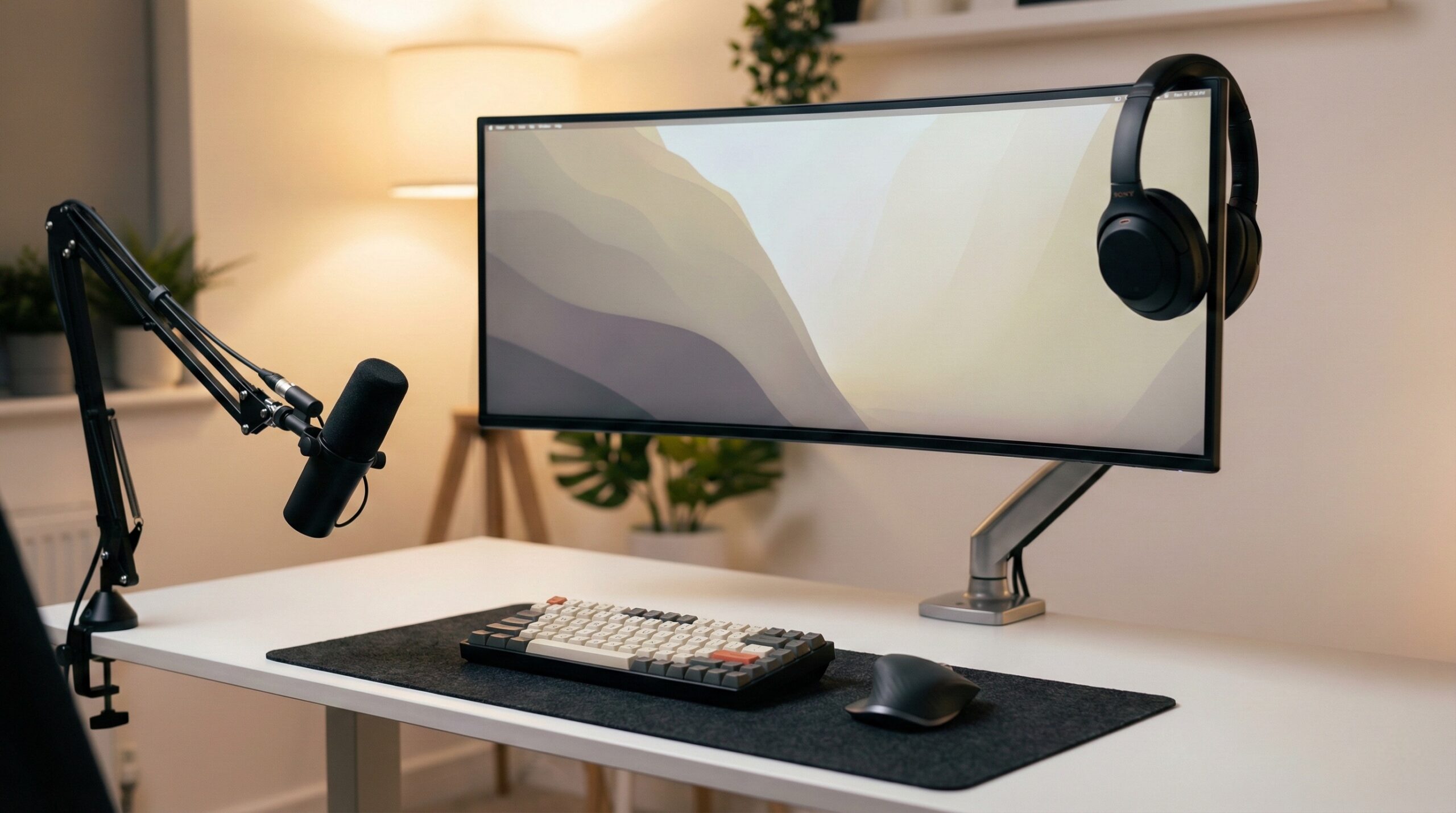
TL;DR
A monitor arm is worth it if you need your screen higher, closer/farther, or out of the way to reclaim desk space — especially for hybrid work, small desks, or sit/stand setups. Start with VESA compatibility (usually 75×75 or 100×100), then match the arm’s real weight range and your desk’s clamp/grommet limits so you don’t end up with wobble or monitor “droop.”
What a Monitor Arm Actually Is
A monitor arm (sometimes called a monitor mount) is an adjustable metal arm that holds your display off the desk, typically by clamping to the desktop edge or bolting through a grommet hole. Instead of relying on the monitor’s stock stand — which often has limited height and can eat up a lot of footprint — a monitor arm gives you adjustable height, depth (how close the screen is to your eyes), swivel, tilt, and often rotation into portrait mode.
Think of it as a simple formula:
- Monitor arm = VESA mount compatibility (usually 75×75 or 100×100) + weight range (minimum and maximum it can hold) + mounting method (clamp or grommet) + movement type (gas-spring vs mechanical) + reach/height (how far it extends and how high it lifts).
The reason these details matter is that an arm isn’t just “a bracket”—it’s a lever. If your monitor is near the arm’s maximum rated weight, or you extend the arm far out, you increase torque on both the arm joints and your desk edge. That’s where you’ll see common problems: slow sagging tilt, wobble when typing, or a clamp that dents a weaker desktop. Industry durability/stability expectations for desk products (for example, the kinds of stresses addressed in ANSI/BIFMA desk testing frameworks) are exactly why it’s smart to take desk construction seriously — especially hollow-core or thin particleboard tops.
Ergonomically, a monitor arm is mainly a positioning tool. OSHA’s workstation guidance emphasizes neutral head/neck posture and keeping your screen in a comfortable viewing position — an arm simply makes that positioning easier to achieve and repeat, particularly if you switch between tasks (typing, reading, video calls) or users (shared home office). If you’re dealing with recurring neck/shoulder discomfort, it can also be helpful to talk with a certified ergonomist or occupational therapist for individualized positioning advice rather than guessing.
Bottom line: a good monitor arm fits your monitor’s VESA pattern, holds its loaded weight without fighting the tilt joint, mounts securely to your desk, and has enough height/reach to put the screen where your body wants it — not where the stand forces it.
Who a Monitor Arm Fits Best
A monitor arm is a strong buy if you recognize yourself in any of these scenarios:
- You need more usable desk space. Lifting the monitor off the surface frees room for a full-size keyboard/mouse movement, notebooks, and docking stations — without shuffling things around every time you sit down.
- You can’t get the screen high enough with the stock stand. If you’re stacking books or using a wobbly riser, an arm is usually a cleaner, more stable solution.
- You frequently change your setup. If you move your screen for video calls, drawing/tablet work, sharing your screen with someone next to you, or switching between sitting and standing, a gas-spring arm is often the most convenient style.
- You want a neater cable run. Many arms include basic cable routing so cords don’t drape across your desk and snag when you reposition.
- You use portrait mode. Writers, coders, and anyone working with long documents often benefit from rotating a display — an arm makes that rotation easier and helps you keep the screen centered.
And, yes, the “feel” matters. Some home office workers specifically call out smooth motion as a reason they’re happy with a gas-spring arm: “This is a good adjustable mount. Like that you are able to adjust it and it moves with ease.” — verified buyer, 5 stars.
If you’re unsure whether you need a monitor arm, ask yourself one practical question: Do I ever wish my monitor were higher, closer/farther, or off to the side? If the answer is “often,” an arm is likely a good fit.
Who Should Skip a Monitor Arm
A monitor arm isn’t automatically the right choice — there are a few common “skip it” situations:
- Your monitor isn’t VESA-compatible (and you can’t get an adapter). Most arms require the VESA hole pattern defined by the VESA mounting standard (commonly 75×75 or 100×100). If your monitor has no mounting holes and no model-specific adapter exists, don’t buy an arm hoping it will “work anyway.”
- Your desk can’t safely take a clamp or grommet. Very thin tops, hollow-core construction, fragile edges, or desks that are already flexy can be a bad match unless you’re willing to reinforce the mounting area.
- You never reposition your monitor and your stand is already fine. If you set your screen once and it stays put, a monitor arm can be an unnecessary expense and installation hassle.
- You’re using a heavier monitor near an arm’s limit. You can get into a cycle of overtightening tilt and tension hardware to fight sag — annoying at best, and potentially damaging over time.
One of the most common frustrations shows up when the tilt joint struggles under load: “It is rated to hold 17.5 pounds, however, I had to tighten the tilt mechanism screw for all I was worth to get it to hold its position.” — verified buyer, 4 stars.
If that quote sounds like your setup (heavier display, extended arm, frequent repositioning), you may be better off choosing an arm with a more generous weight range — or shortening the extension and keeping the monitor closer to the mount to reduce leverage.
Price and Value
Monitor arms generally cluster into a few pricing tiers, and the “value” often comes down to how much adjustment you’ll actually use and how heavy your monitor is.
- Budget gas-spring single arms (~$40–$50). This tier can be a good fit for typical 24–27 inch monitors and for buyers who want the flexibility of a gas spring without paying premium prices. Example pricing from our featured set: the Mount-It! Single Monitor Arm Desk Mount, Gas Spring is commonly listed around $40–$50.
- Midrange single arms (~$90–$110). You’re often paying for a more “finished” build, a broader lineup (single/dual variants), and sometimes better fit-and-finish or support. Example pricing from our featured set: the Desky Flexi Monitor Arm is commonly listed around $90–$110.
- Premium arms (often $150+). Not covered in our featured picks here, but worth mentioning: premium arms tend to justify the price with higher stability, smoother articulation across a wide weight range, and easier adjustments — especially for heavier ultrawides.
Where people overspend: paying for maximum articulation when they really just need height. Where people underspend: choosing an arm that only barely meets the monitor’s weight, then dealing with droop or constant re-tightening. A good rule of thumb is to leave weight “headroom” so the arm isn’t living at the edge of its rating — especially if you plan to add a light bar, webcam, or a VESA adapter.
Common Mistakes When Trying a Monitor Arm
Most monitor-arm regrets are avoidable. Here are the mistakes we see (and how to sidestep them):
- Not confirming VESA compatibility before buying. Check the back of the monitor (or the manual/spec sheet) for a four-hole VESA pattern, most often 75×75 or 100×100. If your monitor is non-VESA, research an adapter first—don’t buy the arm and hope you can “make it work.” For VESA background, the VESA standards overview is the authoritative reference point.
- Using the monitor’s advertised weight but forgetting add-ons. A webcam, light bar, soundbar, or adapter plate can push you into droop territory. If you’re near the top end of the arm’s rating, instability gets more likely.
- Mounting to a weak desktop without reinforcement. Clamp mounts concentrate load at the edge. If your desk top flexes, consider a reinforcement plate (or a grommet mount through a sturdier section) rather than cranking down harder on the clamp.
- Overextending the arm and blaming the arm for wobble. The farther you extend, the more leverage you create. If you can, keep the monitor’s center of mass closer to the pole/mount point.
- Skipping tension/tilt setup and expecting it to “just work.” Gas-spring arms often require dialing in tension for your monitor’s weight; mechanical arms usually require tightening to set a stable position.
- Forgetting cable slack. If cables are too tight, you’ll feel it when you move the arm — and you can stress ports or pull the monitor out of position.
A real-world example of the “tilt setup” mistake is assuming the rating alone guarantees stability: “It is rated to hold 17.5 pounds, however, I had to tighten the tilt mechanism screw for all I was worth to get it to hold its position.” — verified buyer, 4 stars.
If you run into that problem, step back and troubleshoot in this order: verify the loaded weight, confirm you’re within the arm’s range, reduce extension if possible, then adjust tilt/tension per the manual. Avoid overtightening beyond what the hardware is designed to handle.
FAQ
How do I know if my monitor is VESA compatible?
Look for four screw holes on the back of the monitor in a square pattern — most commonly 75×75 mm or 100×100 mm. If you don’t see holes, check the manual/specs; some monitors use a removable cover panel. If it’s non-VESA, confirm there’s a model-specific adapter available before buying an arm. For the standards context, see the VESA standards overview.
What’s the difference between a gas-spring arm and a mechanical monitor arm?
Gas-spring arms “float” more easily and are ideal if you adjust height and position often (shared desk, sit/stand transitions, frequent collaboration). Mechanical arms (non-gas) are typically simpler: you set the position and tighten joints so it stays there, which can be a good fit if you rarely move the monitor and want fewer ongoing tension tweaks.
Will a monitor arm work on any desk?
No. You need (1) a compatible mounting method (clamp edge or grommet hole), (2) a desktop thickness within the arm’s limits, and (3) a desk structure sturdy enough to handle concentrated loads without flexing. If your desk is thin or hollow-core, reinforcement plates can help spread the load and reduce damage risk.
My monitor keeps drifting down — what should I do?
First, confirm your monitor’s real loaded weight (monitor plus light bar/webcam/adapters) is within the arm’s stated range. Then adjust the arm’s tension/tilt hardware according to the manual. If you’re near the top end of the range, try reducing extension (bringing the screen closer to the mount point) to reduce leverage.
Where should my monitor sit for better ergonomics?
General ergonomics guidance (including OSHA workstation recommendations) typically aims for a neutral neck posture — commonly with the top of the screen roughly at or slightly below eye level, and the monitor at a comfortable viewing distance so you’re not leaning forward. A monitor arm helps you dial this in. See OSHA computer workstation guidance for practical positioning basics.
Do I need portrait rotation support in a monitor arm?
Only if you actually rotate the screen. If you do, confirm the arm and VESA plate allow 90° rotation and that you have enough height/clearance so the monitor won’t hit the desk in portrait mode (especially with larger displays).
How do I prevent cable strain when using a monitor arm?
Use the arm’s cable clips/channels if included, leave enough slack for full extension and rotation, and avoid tight bends at the connectors. Cable strain can pull on ports, cause intermittent signal issues, or “fight” the arm’s movement so the monitor won’t stay where you put it.
Looking for these on Amazon? Browse monitor arm on Amazon →
Bottom Line
If you want better monitor height and positioning, more desk space, or easier reconfiguration, a monitor arm is one of the most practical upgrades you can make to a home office. Just don’t guess: confirm VESA compatibility, choose an arm with comfortable weight headroom, and make sure your desk and mount method can handle the load without flexing or damage.
Affiliate disclosure: This page includes affiliate links. Purchases through these links support our work at no added cost.