TL;DR
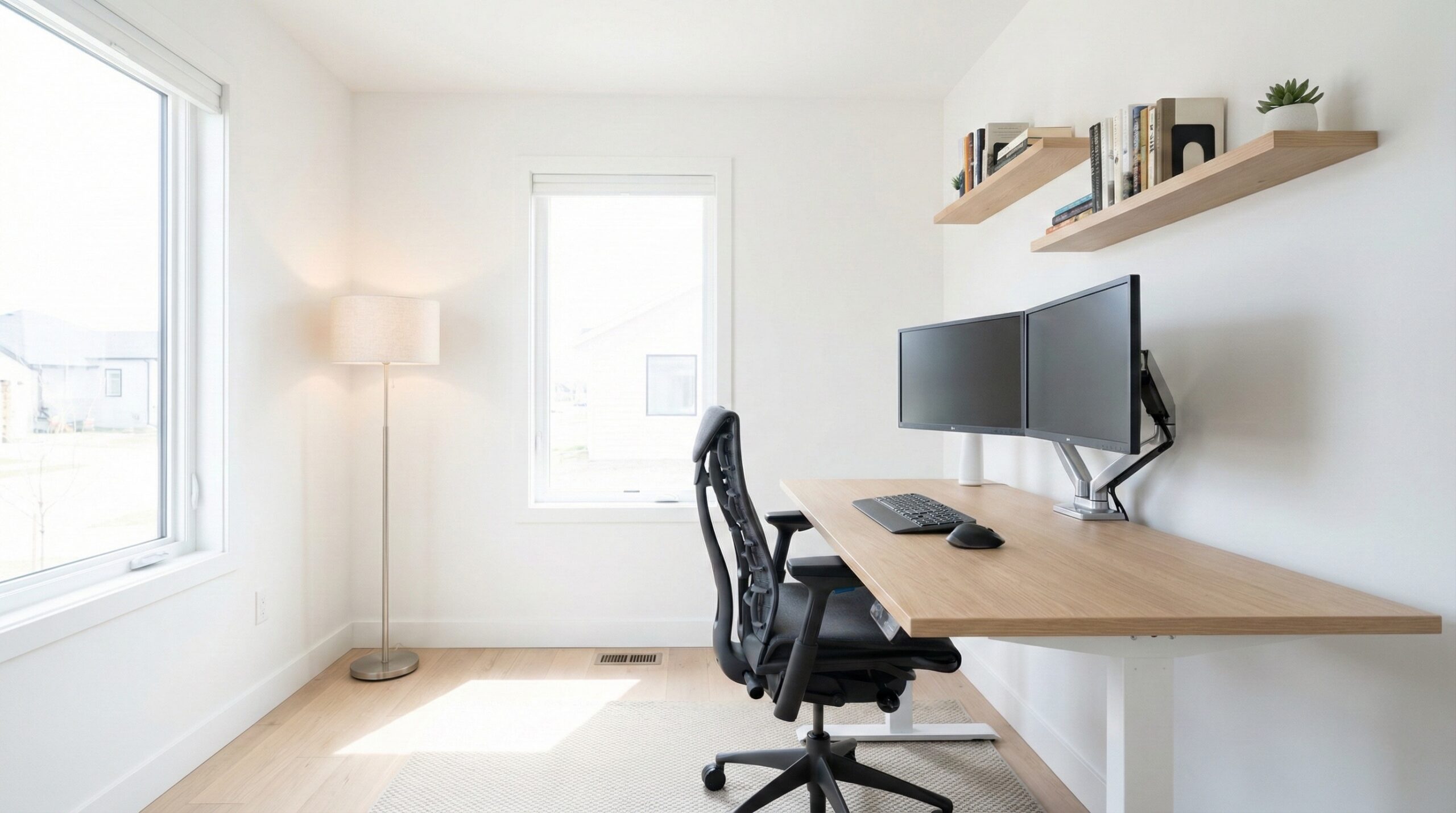
The best home office setup is the one you can adjust to your body and your daily workflow, not the one with the most accessories. Start with posture fundamentals — a truly adjustable chair, a desk that fits your actual gear footprint, and screen/keyboard placement that keeps you in a neutral position — then add organization pieces that reduce clutter and friction over time.
Top Recommended Home Office Setups
| Product | Best For | Price | Pros/Cons | Visit |
|---|---|---|---|---|
| Herman Miller Aeron Size B Office Chair | Adjustable Arms | | All-day seated work with real adjustability | $650 – $700 | Supportive ergonomic base; renewed/refurb units can be inconsistent | Visit Amazon |
| Amazon Renewed Logitech MX Keys S Wireless Keyboard | Low-fatigue typing across long work blocks | $75 – $100 | Comfortable key feel per user reports; some dislike backlight behavior/latency | Visit Amazon |
| Desk Tray (Dark / Large) | Keeping your “work zone” tidy and repeatable | $170 – $210 | Great for daily organization; won’t fix ergonomics on its own | Visit Grovemade |
Top Pick: Best Overall Home Office Setups
Herman Miller Aeron Size B Office Chair | Adjustable Arms |
Best for: People doing 6–10 hour desk days (especially in a typical apartment or spare-room office) who need a chair that can be tuned to reduce slouching and shoulder shrugging.
The Good
- A chair upgrade is usually the biggest comfort “multiplier” in a home office, because it influences your pelvis position, upper-back support, and where your arms naturally land.
- Adjustability is the point here — seat height, arm positioning, and recline controls matter when you’re trying to keep elbows near desk height and shoulders relaxed.
- User reports include positive experiences with renewed units arriving in very clean, “like-new” shape, which can soften the sticker shock.
- Aeron “Size B” is a common middle sizing target, which often works well for average-height users who want a supportive, not-overstuffed seat feel.
The Bad
- Renewed/refurb purchases can be uneven: buyer feedback mentions defects (like broken levers) and missing parts on some low ratings.
- If you’re between sizes or need very specific lumbar behavior, you may need more trial-and-error than you would with an in-person fitting.
- Even a great chair can’t compensate for a monitor that’s too low or a keyboard surface that forces your wrists upward.
“but it came in yesterday and I have to say I am happy with my purchase. The chair looks practically new and I believe most of the parts are brand new.” — verified buyer, 5 stars
Our Take: If you want one “anchor” purchase for a best-in-class home office setup, an adjustable ergonomic chair like the Aeron is the most reliable place to spend — just be extra picky about seller/return terms when you’re buying renewed.
To make the rest of your setup work with your chair (not against it), follow the basic workstation adjustment sequence emphasized by ergonomics guidance like OSHA computer workstations and CDC NIOSH ergonomics:
- Set monitor height first: aim for the top of the screen roughly at or slightly below eye level to reduce neck extension.
- Then set chair height: raise/lower the seat so your feet feel supported (use a footrest if the desk height forces you high).
- Then dial armrests + input height: adjust armrests so shoulders can drop; keep keyboard/mouse close enough that elbows stay near your sides.
- Build in posture changes: small recline shifts and micro-breaks often matter more than chasing a single “perfect” posture.
4.1/5 across 42 Amazon reviews
“I was skeptical with the reviews, but the only sign of use was that it was partially assembled.” — Verified Amazon buyer (5 stars)
“Purchased the HM Aeron size B from these guys with full knowledge knowing they were refurbished, but man are they CHEAP. Lever handle broke off almost immediately, cable for leaning function never worked from the start, and they never sent a cover for the bottom cable assembly. After all the chair issues comes the biggest, the customer service. They are…” — Verified Amazon buyer (1 stars)
Typical price: $650 – $700
Amazon Renewed Logitech MX Keys S Wireless Keyboard
Best for: Heavy typers (emails, spreadsheets, coding, writing) who want a low-effort keyboard for long sessions — especially if you bounce between a work laptop and a personal computer.
The Good
- User reports frequently describe the key feel as comfortable and confidence-inspiring for fast typing.
- Wireless reduces desk clutter, which matters more than it sounds when you’re trying to keep the keyboard/mouse zone stable and consistent day to day.
- Backlighting can be helpful in a darker room or if your office lighting is off-axis (like a lamp behind the monitor).
- As a “setup” component, it pairs well with the ergonomics goal of keeping wrists neutral: you can position it where it belongs (close, centered) without fighting a cable run.
The Bad
- Some buyer feedback mentions occasional disconnects/delays — frustrating if you’re in calls or doing time-sensitive work.
- Backlight behavior is a love-it-or-hate-it detail, and it can feel unintuitive if you expect always-on lighting.
- Renewed items can vary in cosmetic wear, so double-check return windows before committing.
4.4/5 across 134 Amazon reviews
“This is hands down the best keyboard I have ever typed on. The quality and bounce back of the keys allows me to type at a seemingly faster rate than any other keyboard that I have used. I have tried a lot of keyboards in the past and since and I continuously come back to this one as my go to. Battery seems to last for several months on a charge and the app…” — Verified Amazon buyer (5 stars)
“Meh. I’m on the fence on this one. It’s a nice keyboard. I like the feel of the keys. The battery life if excellent for a back-lit keyboard. However, I DISPISE the delay on the backlighting. You have to wave your hand across the keys before they come on, and then the cut off after only a few seconds. It’s annoying and limits your productivity in the dark. I…” — Verified Amazon buyer (3 stars)
Typical price: $75 – $100
Our Take: For a home office where typing is the main event, the MX Keys S is a strong “comfort per dollar” upgrade — just make sure its wireless behavior and backlight logic match how you work.
Desk Tray (Dark / Large)
Best for: Small-space desks and busy workdays where you want one consistent place for the stuff that otherwise drifts (notebook, phone, earbuds, adapters) — especially in a shared room or multi-use dining-table office.
The Good
- Creates a defined “drop zone,” which helps you keep the keyboard/mouse area clear — a sneaky but real ergonomic win.
- A tray makes it easier to reset your desk quickly after non-work tasks (meals, kids’ homework, hobbies) without turning setup time into a daily chore.
- Useful for cable and small-accessory control: dongles, USB drives, and charging leads are less likely to tangle with your main working area.
- If you’re building a cleaner-looking setup for video calls, organization pieces like this do more than decorative items because they reduce visible clutter.
The Bad
- This is an accessory — it won’t solve the core comfort issues that come from a poor chair, bad monitor height, or a too-small desk surface.
- Premium desk accessories can get expensive quickly, so it’s best as a “phase two” buy after you’ve handled posture basics.
Our Take: If your biggest home-office pain point is “my desk is always a mess,” a well-made tray is a practical way to keep your setup repeatable — just don’t treat it as a substitute for ergonomic fit.
FAQ
What should I buy first to build a comfortable home office setup?
Start with the items that most directly control posture: (1) an adjustable chair, (2) a monitor height solution (even a simple stand can help), and (3) a desk surface that actually fits your gear without crowding. Ergonomics guidance like OSHA computer workstations and CDC NIOSH ergonomics generally emphasizes neutral posture and adjustability — so prioritize what lets you change height/position and keep your joints in a more neutral range.
How do I choose the right desk size for my workflow?
Measure what you actually need on the surface: the full width of your monitor(s), a keyboard + mouse zone where your forearms can rest comfortably, and a separate area for writing (notebook or tablet) so you’re not constantly shoving the keyboard aside. If you’re using two monitors, cramped width is one of the fastest ways to end up twisted off-center, so it often makes sense to size up rather than “make it work.”
What’s the correct monitor height for reducing neck strain?
A common rule of thumb in workstation ergonomics is keeping the top of the screen roughly at or slightly below eye level, then placing the screen far enough away that you aren’t craning your neck forward to read. Set the monitor height first, then adjust chair height, then bring keyboard/mouse up or down as needed to keep shoulders relaxed. If you have persistent neck pain, consider a check-in with a certified ergonomist or occupational therapist to dial in your personal fit.
Which chair adjustments matter most for all-day comfort?
Focus on: seat height (feet supported), seat depth (thigh support without pressure behind the knees), arm height (shoulders relaxed), lumbar support (contacts your low back without forcing you forward), and recline/tension (lets you change posture without “falling back”). If you want a plain-language reference point for what a chair should support, OSHA workstation chairs is a useful baseline.
Do I need a standing desk to have a “good” home office setup?
No. Standing desks can be helpful if you’ll actually change posture throughout the day, but a stable fixed desk plus a well-adjusted chair can be excellent. If you do go sit-stand, plan your cable slack so height changes don’t yank connectors, and treat standing as a rotation tool (sit, stand, move) rather than a goal to do all day.
How can I prevent cable mess (and trip hazards) from day one?
Route power and data like a simple “main line”: mount a power strip under the desk (or place it in a fixed, protected spot), run one bundled path to your laptop/monitor area, and secure slack so nothing dangles into leg space. Avoid running power cords under rugs, and keep walkways clear. This is one of those boring steps that pays off daily in fewer snags, fewer accidental disconnects, and a cleaner-looking setup.
What should I prioritize for typing comfort if my wrists or shoulders get sore?
Prioritize neutral wrist position (not bent up), close keyboard placement (so you’re not reaching), and relaxed shoulders (elbows closer to your sides). A comfortable, consistent keyboard can reduce fatigue, but placement matters just as much: keep the keyboard centered to your body and the mouse close enough that you don’t abduct your shoulder for hours.
Bottom Line
If you’re building the best home office setup for real day-to-day work, put your budget into adjustability and fit first — especially an ergonomic chair you can truly dial in. Our top pick is the Herman Miller Aeron (Size B) because the chair is the anchor for posture and long-session comfort, and everything else in your setup gets easier to place once your seated position is stable.
Affiliate disclosure: This page includes affiliate links. Purchases through these links support our work at no added cost.