TL;DR
If you sit at a desk (about 2–4 feet from the screen) for work, web browsing, and most PC gaming, a monitor is usually the better tool: clearer text, PC-first connections, and less latency. A TV can still work as a “big monitor,” but you’ll want one that’s proven to do full RGB/4:4:4 in a PC mode, has a low-latency Game Mode, and fits your viewing distance so you’re not constantly turning your head.
Top Recommended Tech & Peripherals
| Product | Best For | Price | Pros/Cons | Visit |
|---|---|---|---|---|
| LG UltraGear™ 45-inch OLED Dual-Mode 5K2K Gaming Monitor | 0.03ms, 10Wx2, DisplayHDR True Black 400, DP 2.1 & USB-C 90W Power Delivery | Big-screen desk gaming with monitor-style features | $1900 – $2000 | OLED contrast with PC-first inputs; very large for typical desk depth | Visit LG |
| Dell Pro P Monitor | Office-first desk work and everyday productivity | $250 – $600 | Practical “monitor basics” for text-heavy work; not a giant TV-like canvas | Visit Dell |
LG UltraGear™ 45-inch OLED Dual-Mode 5K2K Gaming Monitor | 0.03ms, 10Wx2, DisplayHDR True Black 400, DP 2.1 & USB-C 90W Power Delivery
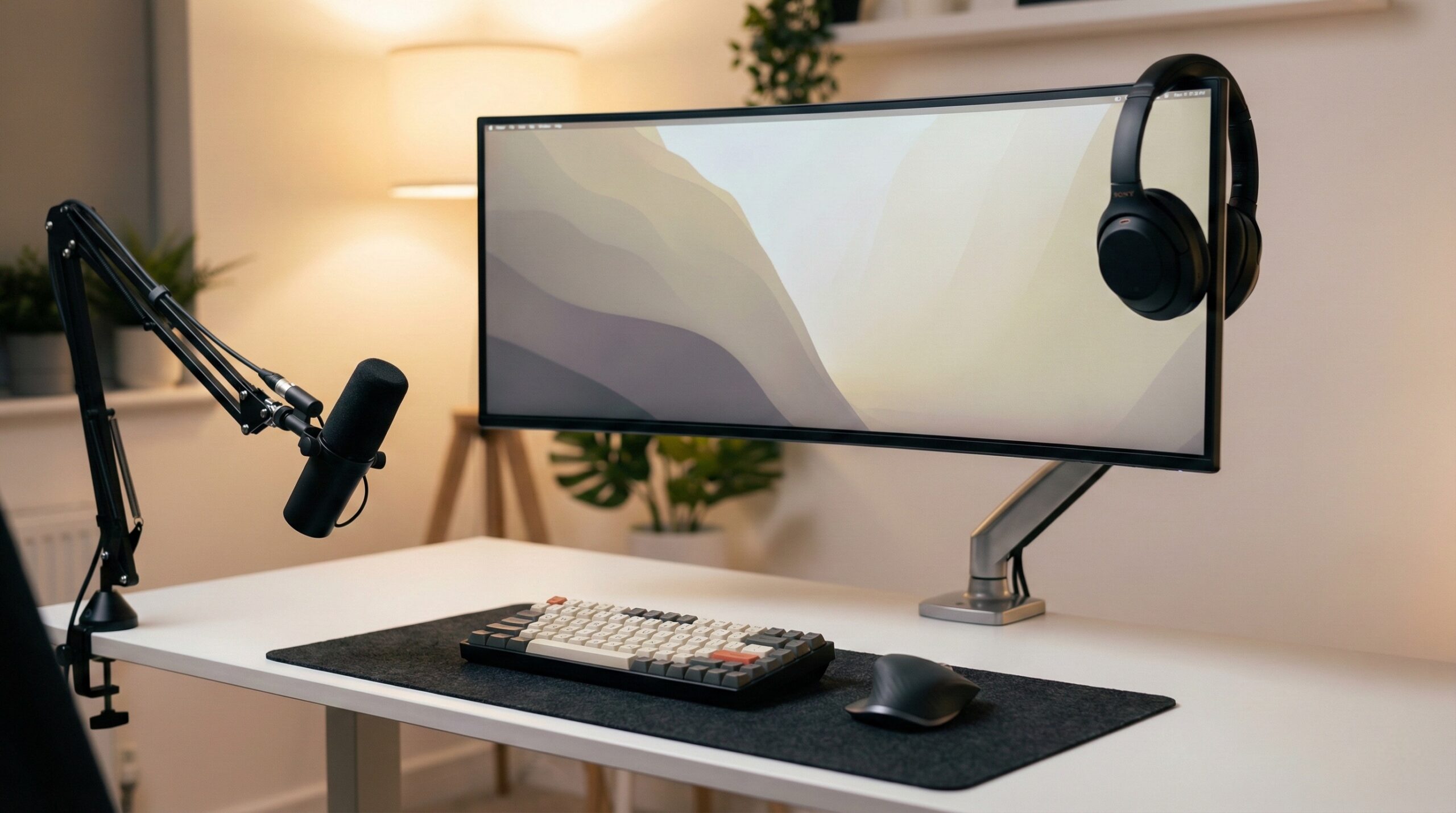
Best for: People who want a “TV-sized” experience at a desk, but with monitor-native connectivity (think DisplayPort/USB-C) and PC-friendly tuning for gaming and mixed use.
The Good
- Monitor-first behavior: Compared with most TVs, a monitor is more likely to give you consistent desktop text rendering and fewer “TV processing” surprises.
- OLED strengths for mixed content: Deep blacks and strong contrast can be excellent for darker games, movie watching, and high-contrast UI.
- PC connectivity emphasis: Specs like DisplayPort 2.1 and USB-C power delivery are exactly the kind of “desk setup” features TVs often skip.
- Built for close-range use: Unlike a living-room TV, this form factor is intended to be used at desk distance, where menus, scaling, and standby behavior matter more.
The Bad
- Size can fight ergonomics: A 45-inch screen can force extra head/eye movement if your desk isn’t deep enough or if you can’t push the screen back.
- Premium pricing: You’re paying for OLED + monitor features — often more dollars per inch than a comparably sized TV.
1.3/5 across 3,651 Trustpilot reviews (source)
“randomly change inputs, doesn’t recognize the hdmi inputs unless you power cycle the connected device, and I also keep…” — Trustpilot review
“I purchased a LG Washer and Dryer on April 2026. I also purchased Premium care for 3 years. My dryer started giving me an error "D80", and I have been calling since April 10 to…” — Trustpilot review
Price: $1900 – $2000
Our Take: If you’re torn in the “monitor vs TV” debate because you want a truly huge screen at a desk, a purpose-built large monitor is the cleaner path than forcing a TV to behave like a monitor. Just make sure your desk depth, mounting plan, and seating position can handle a 45-inch panel without turning everyday work into a neck workout.
Dell Pro P Monitor
Best for: Text-heavy productivity (email, docs, spreadsheets), general home-office work, and a straightforward “plug in and it behaves like a computer display” experience.
The Good
- Optimized for desk distance: Office monitors are typically tuned for reading and UI clarity up close, where TVs can struggle (especially if they default to chroma subsampling or sharpening).
- Predictable input behavior: Monitors tend to have fewer motion/contrast “enhancements” you must hunt down and disable for accurate desktop output.
- PC-friendly connectivity (model-dependent): In this class you’re more likely to see DisplayPort and sometimes USB-C, which can simplify a laptop setup.
- Ergonomic stands are common: Height/tilt/swivel adjustments are more typical on monitors than TVs, which matters for neutral neck posture.
The Bad
- Less screen for the money: Dollar-for-inch, monitors usually cost more than TVs.
- Not “couch versatile”: If your real goal is big-screen movies and controller gaming from farther away, a TV can be a better fit.
Our Take: For most people searching “monitor vs tv” because they work from home and want something comfortable for 8-hour days, a standard office monitor is still the default recommendation. It’s the path of least resistance for readable text, sane defaults, and desk ergonomics — especially if you don’t want to manage TV settings, overscan, and processing quirks.
Monitor vs TV: what actually changes at a desk
The “monitor vs TV” question sounds simple — both are screens, both can be 4K, and both often use HDMI. But the experience can be wildly different because monitors are designed around close viewing and PC signals, while TVs are designed around farther viewing and video processing.
When you’re sitting 2–4 feet away doing productivity work, tiny differences in signal handling (like chroma subsampling) and panel behavior (like subpixel layout) can show up as fringing, fuzzy text, or “why does this feel off?” eye strain. On the other hand, when you’re 6–10 feet away watching movies, TVs often look better for the money because they’re optimized for that job.
Feature deep-dive: Text clarity and chroma subsampling (why TVs can look worse for PC work)
If you’ve ever plugged a PC into a TV and thought, “Why does the text look smeared?”—you’re not imagining it. A common culprit is chroma subsampling, where color detail is reduced (often fine for movies, not fine for desktop UI). For crisp text and clean UI edges, you generally want full RGB / 4:4:4 chroma at your chosen resolution and refresh rate.
RTINGS has a clear explainer on why chroma subsampling matters for reading text, and how TVs can differ from monitors here. See their breakdown in RTINGS’ chroma subsampling guide.
- Monitors: More likely to default to 4:4:4/RGB and be “computer-correct” without extra steps.
- TVs: May default to 4:2:2 or 4:2:0 depending on input label, picture mode, HDMI port, and bandwidth limits.
What to do if you want to use a TV as a monitor: Enable a dedicated PC mode (sometimes by labeling the HDMI input as “PC”), disable overscan, and verify the TV can pass 4:4:4 at the resolution/refresh you need. RTINGS also discusses the broader “monitor vs TV” tradeoffs (including text and lag) in their overview: RTINGS’ PC monitor vs TV comparison.
One more gotcha: Some displays (including some OLED-based options) use subpixel layouts that can make text look less clean in certain operating systems. If you’re sensitive to text rendering, plan to test Windows ClearType/font smoothing and your usual apps before committing.
Feature deep-dive: Input lag, refresh rate, and responsiveness for gaming
For competitive or fast mouse-and-keyboard gaming, monitors usually win because they’re designed to minimize input lag and support high refresh rates (144Hz, 165Hz, 240Hz+). TVs can be excellent for console gaming — especially newer models with strong Game Modes — but you typically have to ensure the right settings are enabled to avoid extra processing delay.
- Monitors: Often low latency across modes; high-refresh options are common; adaptive sync support is widespread in PC-oriented models.
- TVs: Can be low-latency in Game Mode (and may support ALLM/VRR), but non-game picture modes may feel laggy due to processing.
If you’re targeting 4K at 120Hz (common for newer consoles and high-end PCs), make sure the entire chain supports it — GPU/console output, HDMI port capability, and the cable. HDMI feature sets can be confusing, so it’s worth referencing HDMI.org (HDMI Licensing Administrator) for what features like VRR and 4K/120 entail.
Also note: refresh rate isn’t the only factor. Response time and motion handling matter too. TVs often prioritize cinematic processing; monitors often prioritize “what you do with a mouse feels immediate.”
Feature deep-dive: Size, aspect ratio, and ergonomics (desk vs couch distance)
Ergonomically, the biggest difference between a TV and a monitor is what they assume about viewing distance. Most home-office desks are not deep enough to comfortably use a giant TV at close range unless you mount it farther back or sit farther away.
Evidence-based ergonomics guidance generally favors setups that keep your posture neutral and reduce extreme head/neck movement. If you’re unsure about your setup, an occupational therapist or certified ergonomist can help you dial in screen size, placement, and viewing distance for your body and tasks. For baseline positioning, OSHA’s workstation guidance is a helpful starting point: OSHA computer workstation eTool.
- Desk distance (common): Many people land in the 27–34 inch monitor range because it fits typical desk depth without excessive head turning.
- Going bigger: 42–48 inch can work on a desk, but it’s much more sensitive to desk depth, mounting, and how far back you sit.
- Resolution matters more as you go bigger up close: 4K is usually the safer baseline if you’re going beyond ~32 inches for desk use, since you’ll see pixels (and UI density) more clearly at close range.
Aspect ratio is another practical difference. TVs are almost always 16:9. Monitors can be 16:9 too, but you also get ultrawide formats (21:9, 32:9) that can be genuinely useful for side-by-side windows without scaling everything up.
Feature deep-dive: Connectivity and features (PC friendliness vs smart TV processing)
Connectivity is where “monitor vs TV” becomes very concrete. A modern home office often means a laptop, a docking workflow, and frequent input switching — things monitors are more likely to support out of the box.
- DisplayPort and USB-C: Common on monitors; helpful for high refresh rates and single-cable laptop setups (USB-C display + charging + USB hub). TVs are typically HDMI-only.
- USB hubs/KVM features: Many monitors include USB ports, and some include KVM-like features for switching keyboard/mouse between devices. TVs rarely do.
- Smart TV layers: TVs add apps, menus, updates, and sometimes behavior like auto-dimming or aggressive picture “enhancements.” Great for a living room; can be annoying on a desktop.
If HDR is on your wish list, keep expectations realistic: HDR quality varies wildly. Monitor HDR claims often reference VESA’s DisplayHDR tiers; it’s useful background for understanding what “HDR” might actually mean on a monitor: VESA DisplayHDR standards.
How we’d choose between a monitor and a TV (quick decision rules)
- Choose a monitor if: you work at a desk daily, read lots of text, want predictable PC behavior, or care about low-latency mouse/keyboard gaming.
- Choose a TV if: you want maximum screen size per dollar, watch a lot of movies/streaming, or play mostly controller games from farther away.
- If you’re trying to do both: prioritize (1) proven 4:4:4/RGB PC mode, (2) low-latency Game Mode, and (3) a size that matches your viewing distance so you’re not fighting ergonomics.
FAQ
Can a TV replace a monitor for work?
Yes — if the TV supports full RGB/4:4:4 in a PC mode, you can disable overscan and extra processing, and you can sit far enough back for the screen size. If you’ll be reading text all day, monitors tend to be the less fussy option for crisp UI and predictable behavior.
Why does text look blurry on some TVs when connected to a PC?
Common reasons include chroma subsampling (4:2:2/4:2:0), sharpening or other video processing, overscan, and sometimes subpixel layouts that don’t play nicely with certain font rendering. RTINGS explains how chroma affects text clarity in RTINGS’ chroma subsampling guide.
Is refresh rate more important than resolution for gaming?
It depends on what you play. For competitive shooters and fast camera movement, higher refresh and lower input lag often feel more important than 4K resolution. For single-player, cinematic games, you may value 4K and HDR more — especially on a larger screen.
Do I need DisplayPort, or is HDMI enough?
HDMI can be enough, especially if you’re using a TV or a modern monitor with the right HDMI support. But DisplayPort is still very common on monitors and can be a simpler route to high refresh rates on PCs. If you’re shopping around 4K/120 features, HDMI’s own reference pages at HDMI.org are useful for understanding what features you’re actually trying to achieve.
What viewing distance makes a TV practical on a desk?
There’s no single number that fits everyone, but the general rule is: the bigger the screen, the more distance you need to see the whole display comfortably without constant head turning. If you’re straining to take in the corners of the screen, consider a smaller size, a deeper desk, or mounting the screen farther back. OSHA’s general workstation guidance can help you sanity-check placement: OSHA computer workstation eTool.
How do I make a TV behave more like a monitor?
Use a PC/Game picture mode, label the HDMI input as “PC” if the TV supports it, disable overscan, turn off motion smoothing and extra processing, and confirm you’re getting full RGB/4:4:4 at your chosen resolution/refresh. Measurement-focused resources like RTINGS’ monitor vs TV guide can help you understand what to validate.
Should I worry about ergonomics when choosing a huge screen?
Yes. A screen that’s too large for your desk distance can increase head/eye movement and encourage awkward posture over long work sessions. If you have recurring neck/shoulder discomfort, it can be worth consulting a certified ergonomist or occupational therapist to match screen size, height, and distance to your body and tasks. For a baseline starting point, see OSHA workstation guidance.
Bottom Line
For most home-office setups, a monitor is the safer pick than a TV: it’s built for desk distance, text clarity, and PC connectivity, and it usually requires fewer settings tweaks to feel “right.” A TV can be a great big-screen option if you prioritize movies or farther-back gaming — just be picky about 4:4:4 PC support, Game Mode latency, and whether the size truly fits your desk ergonomics.
Affiliate disclosure: This page includes affiliate links. Purchases through these links support our work at no added cost.