TL;DR
If you’re shopping “Uplift standing desk,” you’re really choosing a highly configurable electric sit-stand desk system — and the right build depends less on motor specs and more on whether the height range, desktop size, and stability match your body and your gear. For most home-office setups, an UPLIFT V3 configuration makes sense if you can assemble it carefully, plan cable management up front, and spec enough desktop depth (often 30 inches) for comfortable monitor distance.
What Uplift Standing Desk Actually Is
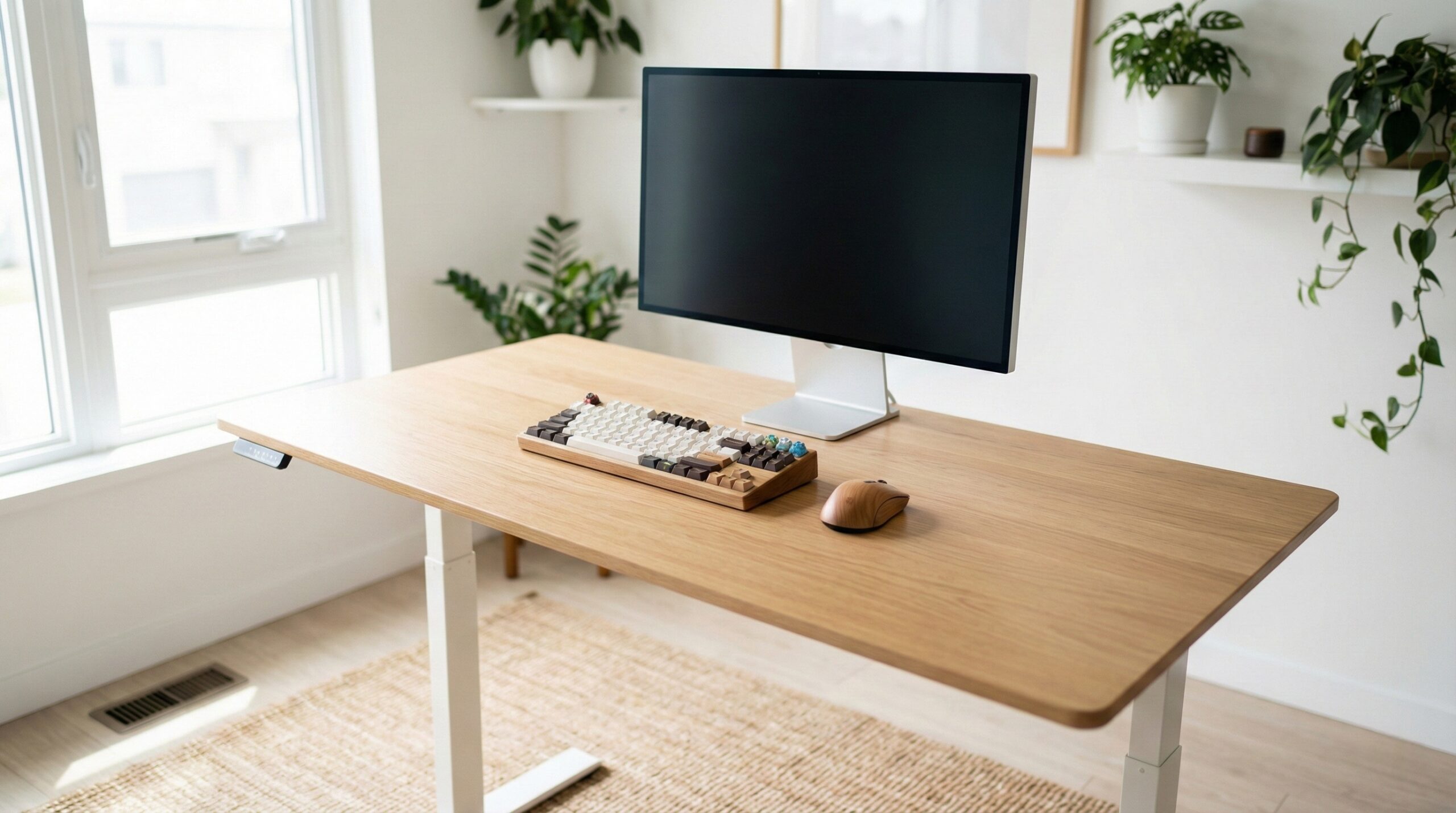
An Uplift standing desk (UPLIFT Desk, most commonly the UPLIFT V3 2-leg desk) is an electric height-adjustable desk that you “build” by selecting a frame plus a desktop size/material and then optionally adding accessories like a cable tray, grommets, a CPU mount, drawers, or monitor arms. That configurability is a big part of the appeal: instead of buying one fixed desk, you’re effectively ordering a workstation package that can be tuned to your room, your workflow, and your equipment.
In practical terms, the desk has motorized lifting columns in the legs, controlled by a handset (often with memory presets). The ergonomics goal is simple: get your keyboard and mouse at a height where your shoulders are relaxed and your elbows are near a comfortable 90° angle — both while seated and while standing. Guidance from organizations like OSHA emphasizes neutral posture and correct input/monitor positioning as the basics of a healthier workstation; the desk is just the adjustable “platform” that helps you hit those positions consistently. (See OSHA computer workstation guidance.)
Where people go wrong is assuming “standing desk” is one-size-fits-all. The desk has to go low enough for your seated posture and high enough for your standing posture, and both numbers shift depending on desktop thickness and add-ons like casters. Industry ergonomics guidance (for example, ANSI/BIFMA workstation guidelines) and general ergonomics education (including NIOSH resources on musculoskeletal risk) consistently point back to the same idea: fit matters, and discomfort tends to come from sustained awkward positions, not from a lack of features. (See NIOSH ergonomics and musculoskeletal disorders resources.)
Finally, an “Uplift standing desk” isn’t one single product experience — because stability and day-to-day satisfaction depend heavily on your choices: desktop width/depth, how far you raise it, whether you use heavy monitor arms, how you distribute weight, and how carefully you tighten every bolt during assembly. Two buyers can both “own an UPLIFT,” but if one has a deep top with careful cable routing and the other has a shallow top with a big monitor arm torquing the back edge, their wobble and usability won’t be the same.
Who Uplift Standing Desk Fits Best
UPLIFT is usually a good fit for home office workers who want a configurable sit-stand setup, plan to keep the desk for years, and are willing to spend time on a careful build (assembly, tightening, and cable management). If you’re the type of buyer who likes picking the exact desktop size and then adding pieces like under-desk cable trays or CPU mounts, UPLIFT’s menu-style approach is a strength.
It’s also a strong match if:
- You want repeatable sit/stand heights. Memory presets matter more than you’d think for consistency — especially if you change shoes, use an anti-fatigue mat, or share the desk.
- You’re trying to solve a real ergonomic problem. If your current desk forces you to raise your shoulders to type, or it’s too tall/short for your chair setup, a height-adjustable desk can help you get closer to neutral posture (often more effectively than adding random “posture” gadgets).
- You’ll use accessories and care about a tidy workspace. Many owners end up happier with the “system” (desk + cable routing + mounting options) than with the lifting speed itself.
- You’re using typical home-office gear loads. One or two monitors, a laptop dock, speakers, and light accessories are common and generally workable — especially if you keep heavy items closer to the legs/back edge to reduce rocking leverage.
UPLIFT is not the only path to this experience. Some users cross-shop alternatives specifically for stability or a different height range. One home-office worker review of a common alternative highlights how shoppers often think in terms of height range and size options rather than brand loyalty: “I bought E7 55” × 28” It has more options for desk stop size if you need other sizes and the adjustable height is 22.8”-48.4” 15 years warrenty.” — Switched from no-name Amazon desk on r/StandingDesk
If you’re unsure whether your discomfort is “desk height” versus “chair/monitor placement,” it can be worth a quick consult with a certified ergonomist or occupational therapist — especially if you’re dealing with persistent neck, shoulder, or wrist pain.
Who Should Skip Uplift Standing Desk
UPLIFT can be an excellent desk, but it’s not the simplest purchase — and it won’t be the best fit for everyone.
- If you hate assembly projects or don’t have help. These desks can be heavy and awkward to flip, align, and tighten. If you want a plug-and-play experience, you may find the process frustrating.
- If you’re extremely sensitive to movement at standing height. Any 2-leg standing desk can show some wobble at tall heights (especially with monitor arms). If you know small movement will bother you, consider prioritizing stability-focused configurations or a sturdier frame style.
- If you need ultra-clear specs and you don’t want to decode options. When you’re choosing among frames, desktops, and add-ons, clarity matters. Some shoppers report confusion even with other premium brands’ spec pages: “but for the apex pro they don’t which is confusing” — Comparing frames; unclear website specs on r/StandingDesk
- If you’re on a strict budget. With UPLIFT, it’s easy to start at a reasonable “base” and then add cost quickly via bigger tops, thicker materials, and accessories.
Also consider skipping (or at least pausing) if your goal is to stand all day. NIOSH and other ergonomics guidance generally supports posture variation: alternating positions and reducing static load can be more realistic than trying to “out-stand” a sedentary job. A sit-stand desk helps most when you actually use it to change positions.
Price and Value
UPLIFT pricing varies a lot because you’re not just buying a single SKU — you’re selecting a configuration. The UPLIFT V3 Standing Desk (2-Leg) is sold direct, and the final price depends on your top size/material, frame options, and accessories. That means “value” is best judged by whether you’re paying for things you’ll actually use (desktop depth, stability, cable management) versus flashy add-ons.
For context, a commonly cross-shopped alternative like the FlexiSpot E7 is often seen around $280–$320 (brand-direct pricing varies by promotions and configuration). UPLIFT is frequently positioned as a more premium, more configurable option — so it may come out higher once you match desktop size and add comparable accessories.
Where the money tends to go (and where it can be worth it):
- Desktop size and thickness. A deeper top (often 30″) can make the desk feel “bigger” and more comfortable than a long list of small accessories.
- Stability-focused choices. If you’re tall, use monitor arms, or type with force, it’s usually worth budgeting for stability rather than chasing the fastest lifting speed.
- Cable management and mounting. A clean, snag-free cable setup is a daily quality-of-life win — especially because these desks move up and down.
- Warranty/support and shipping. With large motorized furniture, responsive support and easy replacement parts can be a real part of “value,” not an afterthought.
Common Mistakes When Trying Uplift Standing Desk
Most “I don’t like my standing desk” stories come down to fit, stability, and setup — not whether the desk can lift.
- Buying without confirming the height range you actually need. Measure your seated elbow height and standing elbow height, then check the desk’s min/max height after accounting for desktop thickness and anything that raises the desk (casters, thick mat under feet, etc.). If the desk doesn’t go low enough, you’ll compensate with shrugged shoulders or a too-high chair (and then your feet dangle).
- Choosing a desktop that’s too shallow. A 24″ deep top can feel cramped once you place a monitor and still want comfortable viewing distance plus room for keyboard/mouse. Many home office setups feel better at 30″ depth, especially if you don’t want a monitor arm.
- Underestimating wobble contributors. Big monitor arms, heavy stacked monitors, and placing weight at the front edge all increase movement. Even a good desk can feel worse if weight is far from the legs.
- Running near load capacity (or forgetting what counts). “Total load” includes the desktop itself plus monitors, arms, speakers, the PC in a CPU mount, drawers — everything the lifting columns move. Leave headroom for smoother motion and less strain over time.
- Not tightening hardware enough (or not re-tightening). Small looseness becomes obvious at standing height. Build carefully, and re-check bolts after a week of use.
- Poor cable slack planning. If cables are taut at standing height, they’ll snag, pull, or disconnect. Route cords with a drip-loop style slack and secure them so movement is controlled.
Owners routinely note that weight and rigidity are linked — heavier frames can be more stable, but harder to build. One user report about a comparable desk frame captures the tradeoff: “Oh there is one thing to mention, the legs of E7 are heavy, it would take you some effort to assemble. But I believe that is why it is sturdy.” — Assembly effort but sturdy on r/StandingDesk
Safety note: treat height changes like moving machinery. Keep hands, knees, kids, and pets clear while the desk moves, and make sure power cords have enough slack and strain relief so they don’t yank from an outlet or power strip.
FAQ
What height range do I need for a sit-stand desk?
Start with your elbow height: when seated, you want relaxed shoulders and elbows roughly around 90° with wrists neutral; when standing, you want the same without shrugging. Compare those targets to the desk’s minimum and maximum heights, then adjust for desktop thickness and anything that raises the surface (casters, thick anti-fatigue mat under your feet doesn’t raise the desk, but casters do). OSHA’s guidance on neutral positioning is a good reference point for checking your setup: OSHA computer workstation guidance.
How can I tell if a standing desk will be stable enough at full height?
Stability is mostly about leverage and build quality: taller working heights, wider/deeper desktops, heavy monitor arms, and leaning on the front edge all increase wobble. If you’re tall or you run dual monitors on an arm, prioritize stability-oriented configuration choices (sturdier frame options, a top that isn’t overly large for the base, and careful tightening). Also place heavier items closer to the legs/back edge rather than the front corners.
What counts toward the desk’s load capacity?
Everything the lifting columns raise: the desktop itself, monitors, monitor arms, speakers, docking station, laptop, and anything mounted under the desk (like a CPU mount plus the PC inside it). Leave headroom instead of planning to live near the limit — higher load can make movement feel less smooth and can amplify the sense of wobble when typing or leaning.
Is a 24-inch deep desktop enough for a monitor and keyboard?
It can be, but it’s often tight. With a typical monitor footprint plus keyboard/mouse space, 24″ depth may push the screen closer than you like or force you into a monitor arm immediately. Many home-office workers find 30″ depth more comfortable for viewing distance and “working room,” especially if you split time between typing and writing.
Is it bad to stand all day at a standing desk?
Standing all day can create its own fatigue and discomfort. Evidence-informed ergonomics advice generally favors varying posture — switching between sitting and standing and keeping neutral alignment — rather than maximizing standing time. NIOSH has practical background on musculoskeletal risk factors and prevention ideas: NIOSH ergonomics and musculoskeletal disorders resources.
Do I need memory presets on the handset?
They’re not mandatory, but they make sit/stand use far more consistent. Two presets (sit and stand) is the baseline most people use; a third can be handy if you switch shoes, add an anti-fatigue mat, or share the desk with someone else.
How long does assembly usually take, and what’s the biggest setup mistake?
Plan for a real project — often a couple of hours depending on your configuration, tools, and whether you’re assembling solo. The biggest mistake is under-tightening hardware (leading to extra wobble) and doing cable management last without enough slack for full height travel. If you’re unsure about a pain issue you’re trying to solve, consider getting input from a certified ergonomist or occupational therapist so you’re not guessing at your workstation geometry.
Looking for these on Amazon? Browse uplift standing desk on Amazon →
Bottom Line
An UPLIFT standing desk is a strong option if you treat it like a configurable workstation: verify the height range for your seated and standing posture, choose enough desktop depth for real comfort, and prioritize stability if you’ll stand tall or use monitor arms. If you want the lowest-friction experience with minimal setup work — or you know any wobble will drive you crazy — consider whether a different frame style or a simpler desk package is a better match.
Affiliate disclosure: This page includes affiliate links. Purchases through these links support our work at no added cost.