Quick Hits
Finding the right balance between a laptop and two external monitors is a challenge that many developers face. After testing various configurations, the most effective solution is a dedicated arm system that brings all three screens into a unified visual plane. For those seeking a premium, flexible experience, the Ergotron Dual Gas Spring Arms remain the benchmark for fluid movement. If you prefer a clean, integrated look with less fuss, the Vari Monitor Arm + Laptop Stand offers exceptional stability on standing desks. Budget-conscious builders will find the HUANUO Dual Monitor Arm surprisingly robust for its price. Meanwhile, the Roost Laptop Stand is the undisputed king of portable setups for digital nomads. Choosing the right stand depends on whether you prioritize the rigidity of a pole mount for perfect alignment or the effortless adjustability of gas springs for a dynamic workspace.
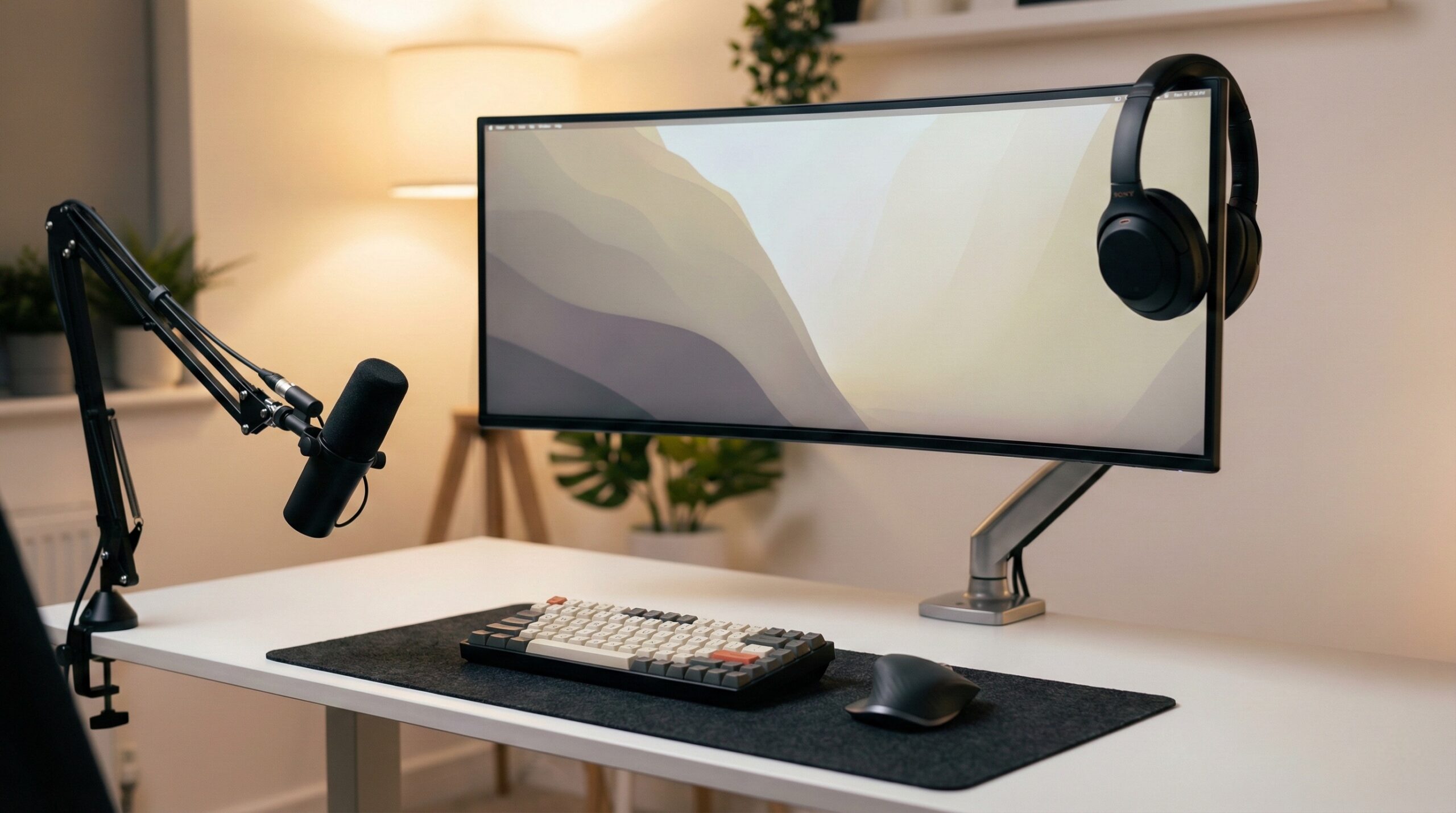
Your workspace is more than just a place to put your computer; it is the cockpit for your daily creative output. I have spent years tweaking my home office, moving from a single wobbly laptop stand to complex triple-monitor arrays. What I have learned is that ergonomics isn’t just about comfort—it is about removing the friction between your thoughts and the code you write. When your monitors are misaligned or your laptop sits too low, you aren’t just straining your neck; you are losing focus. In this guide, we will look at the best notebook stands and arm systems specifically designed to handle the weight and layout requirements of a dual-monitor setup.
| Product Name | Best For | Price Range | Pros/Cons | Visit |
|---|---|---|---|---|
| Vari Monitor Arm + Laptop Stand | Standing Desk Users | $150 – $190 | Rock-solid stability; limited color options. | |
| Ergotron Dual Gas Spring Arms | Maximum Flexibility | $300 – $450 | Fluid movement; very expensive. | |
| HUANUO Dual Monitor Arm Stand | Budget Configurations | $60 – $90 | Affordable; tension can be tricky to set. | |
| Roost Laptop Stand | Travel & Portable Setups | $75 – $90 | Extremely portable; requires external keyboard. | |
| Single Pole VESA Mounts | Zero-Gap Alignment | $30 – $60 | Very sturdy; limited wall clearance. |
Top-Rated Notebook Stands & Arms for Dual Monitor Integration
Vari Monitor Arm + Laptop Stand
For those who have invested in a quality sit-stand desk, the Vari arm system is often the missing piece of the puzzle. It is built with a heavy-duty approach that minimizes the “monitor bounce” common when typing on a raised surface. While many arms struggle with the weight of a laptop tray plus a large monitor, this unit maintains its position through hundreds of height adjustments. The integrated laptop cradle is deep enough to secure a 16-inch MacBook Pro safely, ensuring it doesn’t slide off during transitions from sitting to standing. In practice, the installation is straightforward, using a heavy-duty clamp that doesn’t mar the desk surface, though I noticed it lacks the sophisticated cable management channels found in higher-end boutique arms.
What Works
- Exceptional stability on standing desks, reducing screen wobble.
- Handles the weight of larger professional laptops without sagging.
- Clean, professional matte finish that matches most modern office aesthetics.
What Doesn’t
- The design is somewhat bulky, which might not suit a minimalist “floating” look.
- Lack of wood-finish or high-gloss aesthetic options for home-style decor.
Worth It? Best for standing desk users who need a heavy-duty, reliable mount that won’t vibrate while they type. Skip if you have a very shallow desk and want a “low profile” aesthetic.
Ergotron Dual Gas Spring Arms
Often referred to as the industry gold standard, Ergotron’s gas-shock technology is simply unmatched for fluidity. If your workflow involves frequently moving your screens—perhaps pulling one closer for deep coding sessions or pushing it back for a video call—this is the system you want. The arms can fold back incredibly tight, allowing your desk to sit almost flush against the wall. This is a massive win for anyone working in a tight spare bedroom or an apartment nook. Having tested these side-by-side with cheaper alternatives, the difference in the internal spring quality is palpable; there is no “grinding” or jerky motion here. It feels like your hardware is floating on air.
What Works
- Unrivaled range of motion and smoothness in height adjustment.
- Saves a significant amount of desk depth by folding back compactly.
- Long-term durability; these arms are known to last for a decade or more.
What Doesn’t
- The price point is significantly higher than almost any other consumer arm.
- The laptop tray is often sold as a separate accessory, adding to the total cost.
Worth It? Best for power users who adjust their screen positions throughout the day. Skip if you are on a tight budget or once you set your screens, you never move them.
HUANUO Dual Monitor Arm Stand
If you aren’t ready to drop several hundred dollars on a mounting system, HUANUO offers a surprisingly competent alternative. It uses a robust C-clamp system that provides a secure fit on standard desks. While the gas springs aren’t quite as “buttery” as the Ergotron, they are fully capable of holding a 27-inch monitor and a laptop tray at eye level. One interesting observation: the tension adjustment is very sensitive. You might find yourself turning the hex key quite a bit to find that sweet spot where the monitor stays put but can still be moved. Once locked in, however, it provides a full range of tilt and swivel that rivals more expensive brands. For anyone building their first professional setup, this is a smart way to allocate more budget toward your monitors or tech peripherals and accessories.
What Works
- Incredible value for a gas-spring dual-arm system.
- Includes both C-clamp and grommet mounting options in the box.
- Strong enough to support most standard dual 27-inch monitor configurations.
What Doesn’t
- Tension screws can be finicky; some users report a “breaking-in” period.
- The plastic cable covers can feel a bit flimsy compared to metal-enclosed systems.
Worth It? Best for budget-conscious developers who want the flexibility of gas springs without the premium price tag. Skip if you use exceptionally heavy or ultra-wide monitors.
Roost Laptop Stand
While the other items on this list are fixed mounts, the Roost is the go-to for programmers who find themselves working in coffee shops, coworking spaces, or temporary hotel desks. It is incredibly light and folds down into a tiny wand that fits in any backpack. When paired with lightweight portable monitors, it allows you to recreate a multi-screen environment anywhere in the world. The height adjustability is impressive, often lifting the laptop screen higher than many fixed desktop stands. Note that you cannot type directly on the laptop keyboard while it is on the Roost—it is strictly for raising the screen to eye level while you use an external keyboard and mouse. Integrating this into your productivity tools stack is a lifesaver for your posture during travel.
What Works
- The most portable and height-adjustable stand on the market.
- Fits almost any laptop, from thin MacBooks to thicker gaming rigs.
- Prevents “laptop hunch” by bringing the screen to actual eye level.
What Doesn’t
- Requires a flat, stable surface; it is not meant for use on your lap.
- Premium price for a “plastic” stand, though the fiberglass-reinforced nylon is very strong.
Worth It? Best for digital nomads and programmers who move between locations frequently. Skip if you only work from a dedicated home office desk.
Single Pole VESA Mounts
For those with what I call “OCD tendencies” regarding monitor gaps, a pole-based mount is often superior to gas springs. Gas spring arms can be difficult to align perfectly side-by-side because of the way the elbows move. A single pole with dual VESA plates allows you to slide the monitors along a fixed horizontal rail or independently on short arms, making it much easier to eliminate that annoying 5mm gap between your screens. These mounts are incredibly sturdy because they don’t rely on pressurized gas to hold height; once you bolt them to the pole, they aren’t moving. However, this rigidity comes at a cost: you usually need to pull your desk a few inches away from the wall to accommodate the bracketry. If you’re looking for more ways to optimize a tight area, check out our guide on the best desk shelves for small spaces.
What Works
- The easiest way to achieve perfect “zero-gap” monitor alignment.
- Significantly cheaper than gas spring models with higher weight capacities.
- Extremely sturdy, with zero risk of “spring fatigue” over time.
What Doesn’t
- Requires more space behind the desk, preventing it from sitting flush against the wall.
- Height adjustments are manual and much slower than gas-spring alternatives.
Worth It? Best for developers who want a permanent, perfectly aligned “command center” look. Skip if you need to adjust your screen height frequently.
What Real Users Are Saying (Reddit Insights)
General Sentiment
Across communities like r/Workspaces and r/battlestations, the sentiment is clear: a three-screen setup (laptop plus two monitors) is the productivity peak for many, but it requires careful planning to avoid clutter. Most users suggest that while the laptop screen is the smallest, it serves best as a “tertiary” display for Slack, Spotify, or documentation, while the two larger monitors handle the heavy lifting of IDEs and browser windows. There is a strong preference for gas-spring arms in 2026, as the flexibility allows for a more dynamic posture throughout the day.
Top Complaints & Warnings
One of the most persistent frustrations found in user reviews is the “Sag Factor.”
“I’m using my ASUS XG27ADMG OLED monitor on a gas arm, and it has a sag that tilts forward, even though it’s well under the weight limit. I feel it might be due to the way the monitor slides onto the mount.” — r/StandingDesks
This is a common issue with monitors that have a high center of gravity or unique mounting points. Another major complaint involves wall clearance. Many pole-style mounts prevent the desk from sitting close to the wall, which is a dealbreaker for small home offices. Additionally, users warn that lower-end manual sit-stand desks become noticeably “wobbly” when loaded with dual arms and a laptop tray, suggesting that a high-quality desk base is as important as the stand itself.
Setup Preferences: From Pyramid to Vertical Portrait
Community feedback highlights a few key “battle-tested” layouts:
- The Pyramid: A main monitor centered, one monitor above it, and the laptop to the side. This is a favorite for desks with limited horizontal width.
- The T-Shape: Two monitors in landscape, with the laptop open underneath or centered below them.
- The Coder Special: One horizontal 1440p monitor centered, one vertical monitor for long files of code or documentation, and the laptop on a side stand for communications.
Regardless of the layout, users emphasize the importance of managing the cables that come with three screens. Using the best cable trays for cable management is frequently cited as the only way to keep a triple-screen setup from looking like a disaster zone.
Buying Guide: Gas Spring vs. Pole Mounts for Developers
Choosing between these two styles is the most important decision you’ll make in your desk and workspace setups. If you are the type of person who stays in one position all day, a Pole Mount offers unmatched stability and precision. It is also generally more affordable. However, if you use a standing desk or like to “fiddle” with your screen distance depending on the task, Gas Spring Arms are worth the investment. They allow you to pull a monitor forward for detailed UI work and push it away when you’re just monitoring logs. For developers specifically, consider the weight of your laptop. A 16-inch MacBook Pro is heavy; ensure the gas spring arm you choose has a tension range that can accommodate both a light monitor and a heavy laptop tray without losing its position.
Ergonomic Tips for Triple-Screen Layouts
The biggest ergonomic mistake is having your screens at different heights. This forces your neck to make micro-adjustments every time you switch focus. Aim to have the top third of all three screens—including the laptop—aligned at your eye level. If your laptop stand doesn’t go high enough, consider placing it on a small riser. Position your “Primary” monitor directly in front of you. Your neck should be neutral when looking at your most-used screen. Use the secondary and tertiary screens for reference material only, and rotate your chair (not just your neck) when looking at them for extended periods.
Other Notable Alternatives Worth Considering
- Fully Jarvis Monitor Arm: A fantastic mid-range option that bridges the gap between HUANUO and Ergotron in terms of build quality. Check Price
- Amazon Basics Premium Dual Monitor Stand: Widely rumored to be a rebranded Ergotron, this offers similar quality for a slightly lower price point. Check Price
- Twelve South HiRise for MacBook: A beautiful, non-arm option that looks great on a desk but lacks the “hovering” capability of a full arm system. Check Price
Frequently Asked Questions
Which is better for small desks: Gas spring or pole mount?
For small desks, gas spring arms like the Ergotron are generally better because they can fold back more compactly, allowing the desk to sit closer to the wall. Pole mounts often have brackets that stick out behind the pole, requiring a 2-4 inch gap between the desk and the wall. If you are working in a tight corner, the flexibility of a gas arm allows you to tuck the monitors away when not in use, maximizing your limited surface area.
How do I fix a monitor arm that is sagging forward?
Sagging is usually caused by insufficient tension in the tilt mechanism. Most arms, including the HUANUO and Vari models, have a specific bolt right behind the VESA plate that controls the tilt tension. Use the included hex key to tighten this bolt while holding the monitor in your desired position. If it still sags, check the weight limit of the arm; some OLED monitors, like the ASUS XG27ADMG, have unique weight distributions that might require a higher-rated arm.
Can I use a dual monitor arm with a 16-inch MacBook Pro?
Yes, but you will need a laptop tray attachment for one of the arms. Most dual arms use standard VESA mounts, which the laptop tray screws into. Ensure the arm is rated for at least 10 lbs to safely support a 16-inch MacBook Pro plus the weight of the tray. The Vari Monitor Arm is specifically designed to handle this weight without bouncing or sagging during daily use.
What is the best way to eliminate gaps between two monitors?
To eliminate gaps, a Single Pole VESA Mount is often the most reliable choice because it keeps the monitors on a fixed plane. If you are using gas spring arms, it takes more patience to align them. Look for arms that have independent height adjustment at the VESA plate itself, which allows you to fine-tune the vertical alignment even if the arms aren’t perfectly level. Keeping the bezels touching reduces eye strain during horizontal scanning.
Are cheap Amazon laptop stands sturdy enough for daily coding?
If you are using a separate keyboard and mouse, many affordable stands are perfectly fine. However, for a triple-screen setup, you want a stand that won’t wobble when you walk near the desk or adjust your monitors. Brands like HUANUO offer great value, but for long-term professional use, investing in a more stable system like Ergotron or Vari ensures your hardware stays safe and your visual focal point remains consistent.
Optimizing your dual-monitor and laptop setup is a continuous process of refinement. Whether you choose the fluidity of the Ergotron or the precision of a pole mount, the goal is a workspace that supports your health and your productivity. By getting your screens at the right height and clearing the clutter from your desk surface, you create an environment where you can truly do your best work.
Disclosure: We earn a small commission on qualifying purchases through our Amazon links, at no extra cost to you.