TL;DR
The best desk setups start with fit, not accessories. Get the desk size, monitor distance, height adjustability, and keyboard-and-mouse placement right first, then add extras only if they solve a real problem.
For most home office buyers, the best path is a stable desk with enough depth for comfortable screen distance, a monitor setup that matches your work, a supportive mouse and keyboard, and cable routing that still works if the desk moves. If you spend long hours at a computer, that function-first approach matters more than decorative add-ons.
What Desk Setups Actually Is
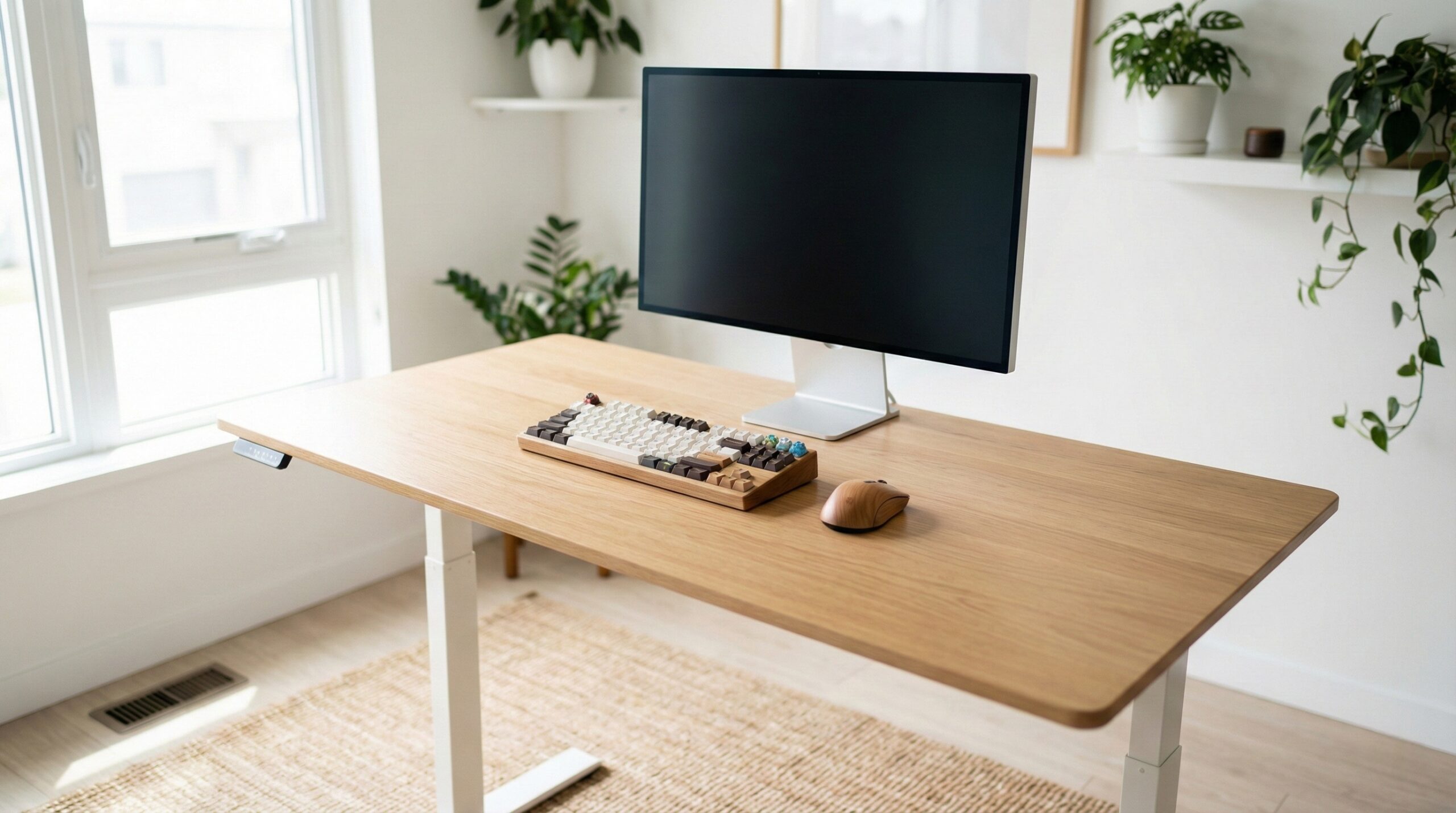
A desk setup is not just a desk with a few accessories on top. It is the full working system: the desk itself, the screen or screens, where those screens sit in relation to your eyes, where your keyboard and mouse land in relation to your elbows and wrists, and how power and data cables are routed so the space stays usable every day.
That distinction matters because a visually tidy setup can still be uncomfortable. A shallow desk can push your monitor too close. A wobbly standing desk can make a monitor arm annoying to use. A nice-looking mouse can still feel wrong in your hand after a long workday. And a clean cable bundle can become a problem if it is too tight for a sit-stand desk to raise fully.
In practice, a good desk setup is built around geometry first. You want enough desk depth so the monitor can sit at a comfortable viewing distance without forcing the keyboard to the edge. You want enough width for your actual equipment list, not an imaginary minimalist layout. You want the top of the screen placed in a way that supports a more neutral head and neck position, and you want your keyboard and mouse close enough that you are not constantly reaching forward.
That general approach lines up with guidance from OSHA computer workstations and Cornell ergonomics research, both of which emphasize workstation fit, monitor placement, and comfortable reach over cosmetic upgrades. Research suggests that reducing awkward reach and poor screen positioning can make long desk sessions more tolerable, especially for people who work at a computer most of the day.
Desk setups also vary by job and room. A spreadsheet-heavy setup may need a larger monitor or a dual-screen layout. A shared apartment office may need a smaller desk with careful cable management. Someone who sits all day may prioritize depth and typing comfort, while someone who alternates sitting and standing needs to care more about height range, stability, and cable slack.
So when we talk about the best desk setups, we are really talking about matching all of those parts into one system that supports neutral posture, efficient workflow, and fewer daily frustrations. Accessories can improve the experience, but they should come after the fundamentals are right.
Who Desk Setups Fits Best
A thoughtful desk setup fits almost anyone who works from home regularly, but it is especially useful for people who spend several hours a day at a screen and want comfort that holds up beyond the first week. If you type, click, read, join video calls, or switch between documents for much of the day, the right setup can be easier on your neck, shoulders, wrists, and eyes than a pieced-together arrangement.
It is a particularly good fit for buyers who are starting from scratch and want to avoid spending money twice. Building around desk dimensions, screen placement, and input comfort first usually leads to fewer regrets than buying decor, shelves, and lighting before you know whether your monitor is too close or your mouse space is too cramped.
It also makes sense for home office workers moving into a standing desk setup. Height adjustability can be helpful if you want to change positions during the day, but only if the desk has the right range for your body and stays stable with your actual equipment on it. If you are using heavier monitors, dual displays, or a monitor arm, that compatibility check matters a lot.
For people who do detailed pointer work, mouse fit is a bigger part of the setup than they expect. A strong example is the Logitech MX Master 3S, which makes sense for productivity-focused users who want a shaped, quiet-click mouse and easy customization. Buyer feedback often points to comfort first, with one home office worker writing, “Amazing ergonomics and feel! The textured grip on this is next level and clearly not talked about enough.” — verified buyer, 5 stars.
This category also fits buyers who are willing to make small adjustments over time. The best setup usually is not one dramatic purchase. It is a desk with enough depth, then a better monitor position, then input devices that suit your hands and workflow, then cable management once everything is in its final place.
If you already know you have recurring discomfort, or you are unusually tall, petite, or working around a medical issue, it can be smart to get guidance from a certified ergonomist or occupational therapist. They can help translate broad ergonomic advice into measurements and positions that fit your body instead of a generic internet diagram.
Who Should Skip Desk Setups
Not everyone needs to turn their workspace into a project. If you only use a desk occasionally for light tasks, a full rebuild may be more effort and cost than you need. In that case, a simple desk with enough depth, a decent chair, and a sensible monitor or laptop position may be enough.
You may also want to skip a more elaborate setup if you are shopping mainly for looks and do not want to think about fit or compatibility. Desk setups are full of small details that affect everyday use: desktop thickness for monitor arm clamps, rear clearance for arm movement, cable slack for standing desks, and whether your keyboard and mouse leave enough room for natural hand position. If you do not want to measure or adjust anything, a simpler arrangement may be less frustrating.
Buyers in very tight spaces should be careful too. A narrow desk can look tidy in photos but feel cramped fast if you need room for a monitor, keyboard, mouse, notebook, dock, and charger. The result can be a setup that looks organized but forces you into forward reach and awkward angles.
Some shoppers should also skip premium peripherals until they know what problem they are solving. A productivity mouse can be a great upgrade, but only if the shape fits your hand and your workflow benefits from the extra controls. Even well-liked models can disappoint if the package is incomplete or setup expectations are off. One critical user report on the MX Master 3S says, “Does not come with the charging chord nor the dongle. Also, no instructions included.” — verified buyer, 2 stars.
Finally, if your pain is already significant, do not assume a new desk setup will fix it by itself. Ergonomic gear is not medical treatment. Evidence indicates that better workstation fit can help reduce strain, but if changes make your symptoms worse, it is worth reassessing the setup and considering professional advice.
Price and Value
Desk setup costs vary widely because the category is really a bundle of categories. You are not buying one thing; you are choosing a foundation desk, display solution, input devices, and often some form of cable management. That means value depends less on a single sticker price and more on how well the parts work together.
For budget-minded buyers, the biggest value move is usually buying the right desk size first. A desk that is too shallow or too narrow often creates a chain of extra spending: monitor risers, replacement arms, keyboard trays, or other fixes that still do not fully solve the original fit problem. Spending a bit more on the correct size and a stable frame can save money later.
If you are considering a standing desk, value should be judged on usable height range and stability rather than marketing around motors or extras. A less flashy desk that reaches your seated and standing elbow heights and stays steady with your monitor setup is usually the better buy than a feature-heavy model that wobbles when fully raised.
Peripherals can be worth paying for when they affect every minute of the workday. The Logitech MX Master 3S sits in the roughly $75 to $100 range, which is not cheap for a mouse, but that price can make sense for buyers who spend long hours navigating documents, spreadsheets, creative apps, or browser tabs. The value case is comfort, quiet clicks, and workflow customization rather than pure affordability.
On the other hand, aesthetic accessories often have the weakest value early on. Desk mats, decorative shelving, RGB lighting, and premium organizers can make a workspace feel more finished, but they rarely matter as much as monitor position, desk depth, or whether your mouse is comfortable after six hours of use.
In short, good value in a desk setup comes from buying the parts that define posture and workflow first, then adding secondary items later. If you are balancing budget and comfort, start with the desk, display placement, and core input devices. That is usually where the biggest day-to-day payoff is.
Common Mistakes When Trying Desk Setups
The most common mistake is starting with the wrong priority. Many buyers focus on accessories, decor, and organization before confirming that the desk is deep enough and the monitor sits at a workable distance. If the base geometry is off, the setup can still feel bad no matter how polished it looks.
Another frequent problem is underestimating compatibility. Monitor arms are a good example. They are useful only when your desk edge, rear clearance, desktop thickness, and monitor mount pattern all line up. If one of those pieces is wrong, the arm can be unstable, awkward to position, or impossible to install safely.
Standing desks add another layer of mistakes, especially with cable routing. Many home office workers set everything up neatly at seated height, then discover the cables pull tight or snag when the desk rises. For any moving desk, every power and data line needs enough slack to travel the full range without tugging on your monitor, dock, or laptop.
Buyers also commonly overbuild too early. Dual monitors, heavy arms, speaker stands, laptop trays, and decorative organizers all sound useful, but they can crowd the desk and complicate ergonomics if your actual work does not require them. A better approach is to add one functional improvement at a time and live with it for a few days.
Input-device mistakes are common too. People often buy a mouse based on popularity without thinking about hand fit, grip style, or what comes in the box. User reports on the MX Master 3S show that even a strong comfort pick can create friction if expectations are not set properly: “Does not come with the charging chord nor the dongle. Also, no instructions included.” — verified buyer, 2 stars. Before buying, check connection method, included accessories, and whether the shape suits how you actually use a mouse.
Finally, some people treat ergonomic guidance as one-size-fits-all. It is better to think in ranges and principles: screen at a comfortable height, input devices close enough to avoid reaching, chair and desk working together, and posture that feels sustainable. Guidance from CDC NIOSH ergonomics and OSHA can help, but fine-tuning still depends on your body, your tasks, and your room.
FAQ
What is the most important part of a desk setup?
The desk size and display geometry usually matter most. If the desk is too shallow, your monitor may sit too close and your keyboard may end up pushed to the front edge. If the monitor is too low, too high, or off-center, you may lean forward or twist more than you realize. Starting with enough desk depth and a sensible screen position gives the rest of the setup a better chance of working well.
Are standing desks worth it for home office work?
They can be, especially if you want the option to change positions during the day. The key is not just whether a desk moves, but whether it reaches the right seated and standing heights for you and stays stable with your real equipment on top. Check weight limits, monitor-arm compatibility, and safety guidance before loading a motorized desk with heavy screens or accessories.
Do I need a monitor arm for a good desk setup?
No. A monitor arm is useful if you need finer height adjustment, want to free up desk space, or switch positions often. But a standard monitor stand can work perfectly well if it already places the screen where you need it. If you do want an arm, make sure the desk edge shape, desktop thickness, rear clearance, and monitor VESA mount all match the arm’s requirements.
Should I buy ergonomic accessories before decorative ones?
Yes. Comfortable input devices, correct monitor placement, and adequate workspace usually improve daily use more than decorative accessories. If your budget is limited, put money toward the desk, screen placement, mouse, keyboard, and any lighting needed for clear visibility first. Aesthetic upgrades are easier to add later once the core setup is comfortable.
How much desk depth do I need?
There is no one number that fits everyone, but more depth generally gives you more flexibility to place the monitor at a comfortable distance while keeping the keyboard and mouse in a natural reach zone. Your ideal depth depends on monitor size, whether you use a monitor arm, and whether you need room for writing, speakers, or a dock. Buyers using larger screens or dual monitors should be especially careful not to choose a desk that forces everything too close.
What often gets overlooked in desk setups?
Cable slack and routing are major ones, especially on sit-stand desks. People also overlook monitor-arm clamp fit, desktop thickness, and how much width they actually need once a keyboard, mouse, notebook, and charger are all in place. Another common miss is using a mouse that looks good on paper but does not match hand size or work style.
Can a better desk setup help with neck or wrist discomfort?
It can help if poor workstation fit is part of the problem. Research suggests that better monitor placement, improved reach, and more suitable input devices can reduce strain for some people. Resources like OSHA workstation chairs and broader OSHA computer workstation guidance are useful starting points. But if pain persists or gets worse, it is smart to reassess the setup and consider a certified ergonomist or occupational therapist.
Looking for these on Amazon? Browse desk setups on Amazon →
Bottom Line
The best desk setups are the ones that fit your body, your work, and your space before they try to impress anyone on video calls. Prioritize desk depth, monitor placement, adjustability, input comfort, and cable routing first.
Once those basics are right, extras become easier to choose and more likely to be worth the money. For most home office buyers, that function-first approach leads to a setup that feels better and works better every day.
Affiliate disclosure: This page includes affiliate links. Purchases through these links support our work at no added cost.